


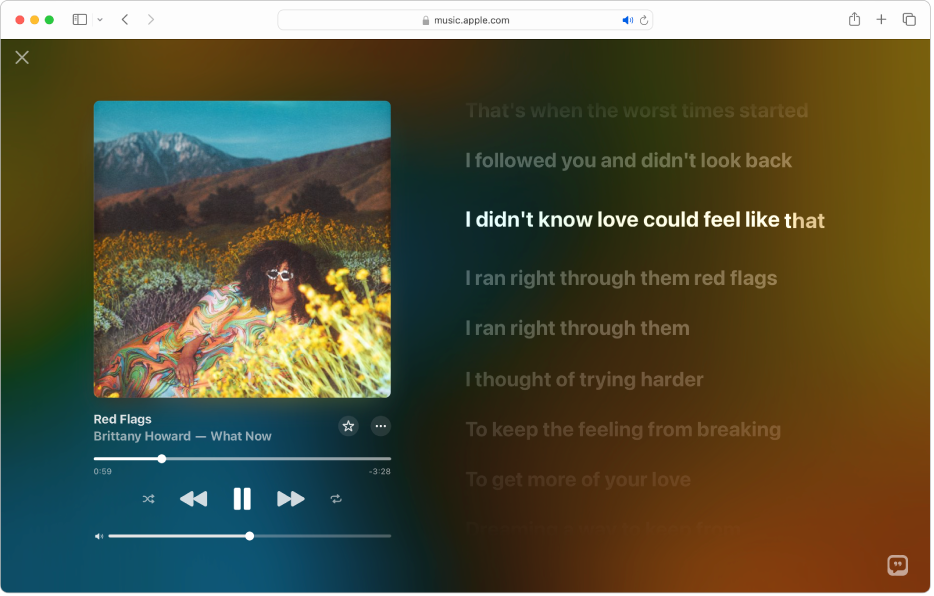
Apple music web player revolutionizes the way music lovers access their favorite tracks through any browser without downloading apps.
This browser-based streaming service launched in September 2019 has transformed digital music consumption by offering instant access to over 100 million songs.
The web player provides seamless integration across Windows, Mac, Linux, and Chrome OS platforms, making Apple Music more accessible than ever.
What is Apple Music Web Player?
The Apple Music web player is a browser-based version of Apple’s popular streaming service. It allows subscribers to access their entire music library directly through web browsers without installing dedicated applications.
This platform-independent solution works seamlessly on any device with internet connectivity. Users can stream songs, manage playlists, and explore millions of tracks from music.apple.com.
The web player mirrors the familiar Apple Music interface that users know from mobile and desktop apps. It offers instant access to curated playlists, radio stations, and personalized recommendations.
Unlike traditional apps, the web player requires no downloads or installations. Simply open your browser, sign in with your Apple ID, and start streaming immediately.
Key Features of Apple Music Web Player 2026
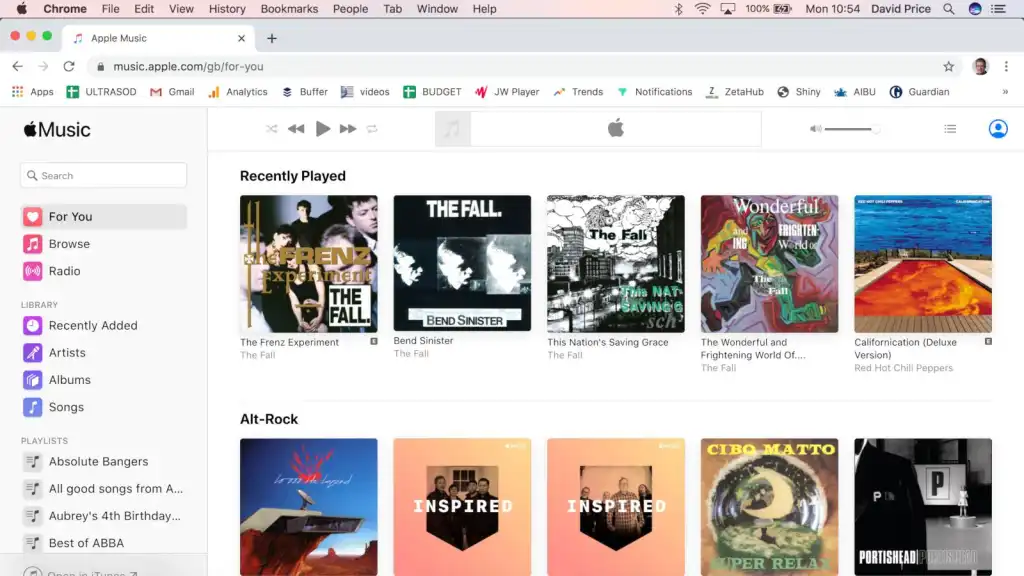
Extensive Music Library Access
The web player grants instant access to Apple Music’s catalog of over 100 million songs. Users can browse through genres, artists, albums, and curated playlists without limitations.
Your personal library syncs automatically across all devices. Every song you’ve added, playlist you’ve created, and album you’ve saved appears instantly in the web player.
The search functionality helps users discover new music quickly. Type any artist name, song title, or album to find what you’re looking for within seconds.
Personalized Recommendations
The “For You” section delivers tailored music suggestions based on listening habits. Apple Music’s algorithm analyzes your preferences to recommend songs you’ll love.
Discovery stations refresh regularly with new picks. Each time you listen, the platform learns more about your taste and refines its suggestions.
Apple Music Replay tracks your listening history throughout the year. This feature shows your most-played songs, artists, and genres in the web player.
Seamless Playback Controls
Standard playback features include play, pause, skip, and repeat functions. Users can shuffle entire playlists or play songs in order with simple clicks.
Volume controls allow precise audio adjustments directly from the browser interface. The player remembers your last volume setting for consistent listening experiences.
Keyboard shortcuts enable hands-free control. Press the spacebar to pause or resume playback, and use arrow keys to navigate between tracks.
Cross-Platform Compatibility
The web player works on Windows, Mac, Linux, and Chrome OS systems. Any device with a modern browser can access the full Apple Music experience.
Supported browsers include Chrome, Safari, Firefox, Edge, and Opera. The interface adapts automatically to different screen sizes and resolutions.
Mobile browsers also support the web player. Access your music library from smartphones and tablets when you don’t want to use the native app.
Library Management Tools
Add or remove songs from your library with single clicks. The plus icon lets you save tracks, while the minus icon removes them instantly.
Create and edit playlists directly through the web interface. Drag songs to reorder tracks or right-click for additional management options.
Like and dislike features help improve recommendations. Heart your favorite songs to hear similar tracks, or mark songs you don’t enjoy to avoid them.
Radio Stations and Live Content
Apple Music 1, Apple Music Hits, and Apple Music Country provide live radio broadcasts. These stations require no subscription and play continuously through the web player.
On-demand radio shows from previous broadcasts are available for playback. Listen to episodes you missed from your favorite DJs and hosts.
Genre-based radio stations offer endless discovery opportunities. Start a station based on any song or artist to explore similar music.
Audio Quality Options
The web player streams music using AAC (Advanced Audio Codec) format. This compression provides good quality while maintaining reasonable bandwidth usage.
Audio quality typically ranges from 128 kbps to 256 kbps depending on connection speed. The player automatically adjusts quality based on network conditions.
Spatial Audio with Dolby Atmos enhances supported tracks. This immersive audio technology creates multidimensional sound experiences through the browser.
Integration with Apple Ecosystem
Changes made in the web player sync instantly to all your Apple devices. Add a song on your computer, and it appears immediately on your iPhone.
Your Apple Music subscription works across all platforms. One subscription grants access to the web player, mobile apps, and desktop applications.
Two-factor authentication ensures secure access to your account. The web player integrates with Apple’s security features for protected streaming.
How to Access and Use Apple Music Web Player
Getting Started
Open any modern web browser on your computer or mobile device. Type “music.apple.com” in the address bar and press Enter.
The Apple Music homepage displays featured content, charts, and new releases. Browse without signing in to preview the interface and explore available content.
Click the “Sign In” button located in the top-right corner. Enter your Apple ID and password associated with your Apple Music subscription.
Navigating the Interface
The left sidebar contains main navigation sections: Listen Now, Browse, Radio, and Search. Click any section to access its specific features and content.
Your library appears in the left panel after signing in. Access your songs, albums, artists, and playlists from this convenient menu.
The main content area displays selected content in the center of the screen. Browse through recommendations, charts, and featured playlists in this space.
Searching for Music
Click the search icon or press the search shortcut to activate the search bar. Type artist names, song titles, album names, or genre keywords.
Search results display instantly as you type. Results organize into categories: Songs, Albums, Artists, Playlists, and Music Videos.
Click any result to view its details page. From there, play songs, view track listings, or add items to your library.
Playing Music
Click the play button next to any song or album to start playback. The player controls appear at the top of the screen showing current track information.
Control playback using the standard buttons: previous track, play/pause, next track. Additional controls include shuffle, repeat, and volume adjustment.
Right-click any song for additional options. Add to playlist, remove from library, or view artist information from this context menu.
Creating Playlists
Navigate to your library and click the “New Playlist” button. Enter a name and description for your playlist, then start adding songs.
Search for tracks or browse your library to add songs. Click the plus icon next to any song and select your playlist from the list.
Drag songs to reorder them within your playlist. The web player saves all changes automatically as you make them.
Managing Your Library
Add songs to your library by clicking the plus icon. The song immediately syncs across all your devices using iCloud Music Library.
Remove songs by clicking the minus icon or right-clicking and selecting remove. Deleted items disappear from all your devices simultaneously.
Filter your library by songs, albums, or artists using the sidebar menu. Search within your library to quickly find specific tracks.
Apple Music Web Player vs Desktop App
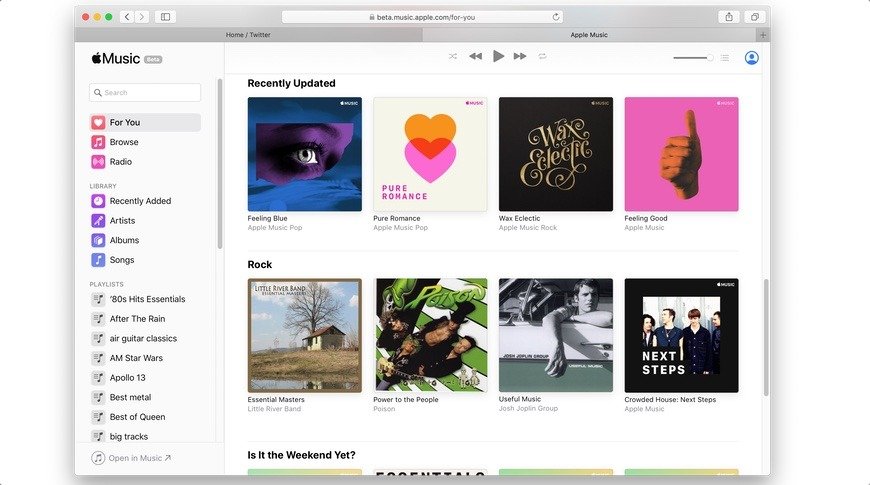
Interface Similarities
Both platforms share nearly identical visual designs. The layout, color scheme, and navigation structure remain consistent across web and desktop versions.
Core features function the same way in both environments. Playback controls, library management, and search capabilities work identically.
Your preferences and settings sync between platforms. Volume levels, playback positions, and library changes transfer seamlessly.
Key Differences
The web player cannot download songs for offline listening. This limitation means you need constant internet connectivity to stream music.
Desktop apps offer higher audio quality at 256 kbps by default. The web player typically streams at 128 kbps, resulting in slightly compressed sound.
Mini-player mode exists only in desktop applications. The web player cannot minimize into a compact floating window.
Live lyrics display in the desktop app but not the web player. You can view static lyrics in the browser but not real-time synchronized ones.
Creating smart playlists requires the desktop application. The web player allows manual playlist creation but lacks automatic playlist generation.
Performance Considerations
The web player often loads pages faster than desktop apps. Browser optimization allows quicker navigation between sections and searches.
Memory usage varies based on browser efficiency. Chrome typically consumes more RAM than Safari or Edge when running the web player.
Desktop apps provide more stable playback during network fluctuations. Built-in caching helps maintain audio quality when connectivity drops briefly.
Common Problems and Solutions
Songs Playing Only 30-Second Previews
This issue occurs when users aren’t properly signed into their subscription account. The web player defaults to preview mode without authentication.
Solution: Click the sign-in button and enter your Apple ID credentials. Ensure you’re using the account associated with an active Apple Music subscription.
Verify your subscription status at appleid.apple.com. Check that your payment information is current and your subscription hasn’t expired.
Web Player Not Loading or Displaying Errors
Browser cache and cookies accumulation causes loading failures. Outdated stored data interferes with the web player’s ability to function properly.
Solution: Clear your browser’s cache and cookies through settings. In Chrome, go to Settings > Privacy and Security > Clear Browsing Data.
Disable browser extensions temporarily, especially ad blockers. Some extensions block essential scripts required for the web player to operate.
Update your browser to the latest version. Outdated browsers lack necessary features and security patches for modern web applications.
Playback Stops After Few Songs
Poor internet connection causes frequent playback interruptions. Unstable networks prevent the web player from buffering songs continuously.
Solution: Test your internet speed and connection stability. Reset your router by unplugging it for 30 seconds, then reconnecting.
Close unnecessary browser tabs consuming bandwidth. Multiple active tabs can limit the resources available for music streaming.
Try switching to a wired Ethernet connection if available. Wired connections provide more stable streaming than WiFi networks.
Songs Cutting Out or Skipping
Network bandwidth issues or server problems cause audio interruptions. The player struggles to maintain continuous streaming during connectivity drops.
Solution: Reduce video streaming or downloads running simultaneously. These activities consume bandwidth needed for smooth music playback.
Restart your browser to clear temporary glitches. Fresh browser sessions often resolve random playback issues.
Check Apple’s system status at apple.com/support/systemstatus. Server-side problems require waiting for Apple to implement fixes.
Library Not Syncing Properly
iCloud Music Library synchronization delays prevent updates from appearing. Changes made on other devices take time to reflect in the web player.
Solution: Toggle “Sync Library” off and on in your device settings. This action forces a fresh synchronization attempt.
Sign out of all browsers through Account Settings. Click “Sign Out of All Web Browsers” then sign back in after restarting.
Wait 10-15 minutes for changes to propagate across servers. Cloud synchronization isn’t instantaneous and requires processing time.
Explicit Content Restrictions
Parental controls or content restrictions block certain songs from playing. The “E” symbol indicates explicit content that may be restricted.
Solution: Access Restrictions settings on your iOS device. Navigate to Settings > Screen Time > Content & Privacy Restrictions.
Enable explicit content under Music, Podcasts & News settings. Toggle the switch to allow all content ratings.
If restrictions persist, check Family Sharing settings. Organizers can enforce restrictions across all family members’ accounts.
Shuffle Playing Only Some Songs
Database indexing issues cause the shuffle feature to access limited tracks. The algorithm may get stuck on particular sections of your library.
Solution: Scroll to the bottom of your song list before enabling shuffle. This action helps the system recognize your complete library.
Start playback from recently added songs then engage shuffle mode. This technique resets the shuffle algorithm’s starting point.
Clear your browser data and sign back in. Fresh sessions often resolve quirky algorithm behaviors.
Unable to Create or Edit Playlists
Permission issues or temporary server problems prevent playlist modifications. The web player sometimes experiences delayed responses to user actions.
Solution: Refresh the browser page and attempt the action again. Temporary glitches often clear with simple page reloads.
Try creating playlists through the mobile app first. Once created, they become accessible and editable through the web player.
Check your subscription status. Expired or suspended accounts lose full access to playlist creation features.
Multiple Device Playback Conflicts
Individual Apple Music subscriptions allow playback on one device at a time. Attempting to stream on multiple devices triggers error messages.
Solution: Stop playback on other devices before starting the web player. Check your iPhone, iPad, Mac, or smart speakers for active sessions.
Upgrade to a Family Plan for simultaneous multi-device streaming. Family subscriptions support playback on up to six devices concurrently.
Sign out of unused devices through your Apple ID account management. Remove authorized devices you no longer use regularly.
Advanced Tips for Better Experience
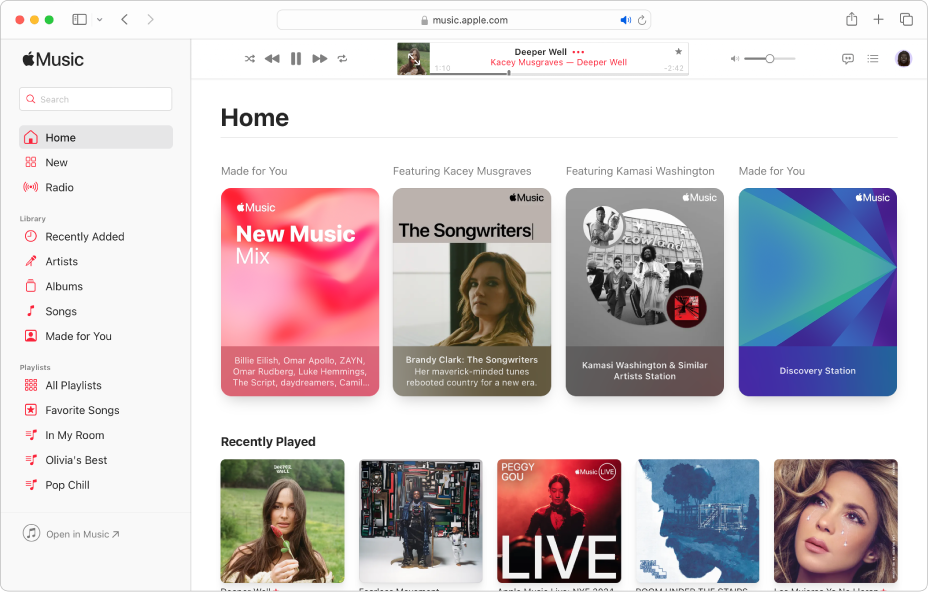
Creating Desktop Shortcuts
Pin the Apple Music website to your browser’s taskbar for quick access. In Chrome, click the three-dot menu and select “More Tools” > “Create Shortcut.”
Check “Open as window” to launch the web player in standalone mode. This option removes browser chrome for a cleaner, app-like experience.
Mobile users can add the web player to their home screen. In Safari, tap the share button and select “Add to Home Screen.”
Keyboard Shortcuts for Efficiency
Spacebar toggles play and pause without clicking. This universal shortcut works in most browsers for instant playback control.
Arrow keys navigate between tracks quickly. Left arrow skips to the previous song, right arrow advances to the next.
Command/Control + F opens the search function. Type your query immediately without clicking the search box first.
Optimizing Audio Quality
Connect quality headphones or external speakers for better sound. Built-in laptop speakers often don’t do justice to music quality.
Close background applications consuming system resources. Freeing up RAM and CPU improves overall browser performance.
Use modern browsers like Chrome or Edge for best audio processing. These browsers handle audio codecs more efficiently than older alternatives.
Managing Data Usage
Monitor your internet bandwidth consumption during streaming sessions. Extended listening on metered connections can exhaust data caps quickly.
Lower quality settings if available to reduce data usage. Though limited in the web player, connection speed naturally adjusts quality.
Download songs through the mobile app for offline listening. Use the web player when connected to unlimited WiFi networks.
Troubleshooting Browser-Specific Issues
Safari users on Mac benefit from optimal performance and battery efficiency. Apple’s native browser integrates best with Apple services.
Chrome provides extensive extension support but consumes more memory. Consider using Edge for similar features with better resource management.
Firefox offers strong privacy features and customization options. This browser works well for users prioritizing data protection.
Utilizing Collaborative Features
Share playlists with friends through generated links. Right-click any playlist and select “Share Playlist” to get a shareable URL.
Collaborative playlists allow multiple users to add songs. Create a playlist, enable collaboration, and share with friends for group curation.
React to songs in shared playlists using emoji reactions. This feature helps groups indicate their favorite tracks within collaborative lists.
Privacy and Security Features
Data Collection Practices
Apple collects limited information about web player usage. This includes playback history, search queries, and listening patterns for recommendations.
Geographic location data helps customize content availability. IP addresses provide general region information without precise tracking.
When signed out, a temporary identifier tracks player activity. This identifier resets daily and doesn’t link to your Apple ID.
Cookie Management
The web player uses cookies to maintain your signed-in session. Disabling cookies prevents the player from remembering your login credentials.
Local storage saves preferences like volume levels and playback positions. Clear local storage to reset all web player settings.
Third-party cookies aren’t required for basic functionality. Blocking these cookies enhances privacy without affecting core features.
Account Security
Two-factor authentication adds an extra security layer. Enable this feature in your Apple ID settings for better account protection.
Regular password updates help prevent unauthorized access. Change your Apple ID password periodically through appleid.apple.com.
Review authorized devices in your account settings. Remove any unfamiliar devices that may indicate security concerns.
Future of Apple Music Web Player
Expected Updates in 2026
Enhanced audio quality options may arrive in future updates. Apple continues developing lossless streaming for web browsers.
Improved playlist creation tools could match desktop app capabilities. Smart playlists and advanced filtering might become web-accessible.
Better offline functionality through progressive web app technology. Browser-based caching could enable limited offline playback.
Technology Improvements
5G networks will enable seamless high-quality streaming. Faster connections reduce buffering and support better audio codecs.
WebAssembly integration could improve performance significantly. This technology allows near-native app speeds in web browsers.
AI-powered recommendations will become more accurate. Machine learning advances help predict listener preferences better.
Cross-Platform Integration
Deeper integration with non-Apple devices continues expanding. Android users benefit from improved web player functionality.
Smart speaker support through web APIs may arrive. Control playback on connected speakers directly from the browser.
Social features could enhance music discovery and sharing. Real-time listening parties and friend activity feeds might launch.
Comparing Apple Music Web Player to Competitors
Spotify Web Player
Spotify’s web player offers free tier access with advertisements. Apple Music requires a paid subscription for full functionality.
Both platforms provide similar basic features and interfaces. Playback controls, search, and library management work comparably.
Spotify allows podcast streaming through the web player. Apple Podcasts requires a separate website or app.
YouTube Music Web Player
YouTube Music integrates video content seamlessly. Apple Music focuses primarily on audio streaming.
YouTube’s free tier includes ads but allows basic playback. Apple Music’s web player requires subscription for any full songs.
Both services offer personalized recommendations and radio stations. YouTube leverages video viewing history for suggestions.
Amazon Music Web Player
Amazon Music provides high-definition streaming options. Apple Music’s web player currently limits audio quality.
Prime members receive basic Amazon Music access. Apple Music requires a dedicated subscription regardless of other services.
Both platforms sync libraries across multiple devices. Cloud integration works similarly between the services.
Getting the Most Value from Your Subscription
Exploring Curated Content
Browse editor-curated playlists for professionally selected music. Apple’s team creates themed collections across genres and moods.
Check weekly updated playlists like New Music Daily. These compilations highlight recent releases and trending tracks.
Explore genre-specific sections for deep dives into music styles. Each category offers carefully organized subgenres and era-based collections.
Utilizing Radio Features
Apple Music 1 broadcasts live shows featuring popular DJs. Tune in for exclusive interviews, premieres, and curated selections.
On-demand episodes let you catch missed shows. Access previous broadcasts through the Radio section anytime.
Create custom stations based on favorite artists or songs. These personalized stations discover similar music automatically.
Maximizing Family Plans
Family subscriptions support up to six members. Each person maintains separate libraries and recommendations.
Share purchased music and app subscriptions across family members. Apple One bundles multiple services at discounted rates.
Parental controls help manage younger listeners’ access. Restrict explicit content and limit certain features for children.
Taking Advantage of Student Discounts
College students receive significant subscription discounts. Verify enrollment through UNiDAYS for reduced monthly pricing.
Student plans include Apple TV+ at no additional cost. Access movies, shows, and original content alongside music streaming.
Verification requires renewal periodically. Keep enrollment documentation current to maintain discounted pricing.
Technical Requirements and Specifications
Supported Browsers
Chrome version 90 or later ensures full compatibility. Keep your browser updated for best performance.
Safari version 14 or newer works optimally on Mac. Apple’s native browser receives priority support and features.
Firefox version 88 or later provides reliable functionality. Open-source browser users enjoy full web player access.
Edge version 90 or newer offers excellent performance. Microsoft’s browser works well on Windows systems.
Internet Speed Requirements
Minimum 1 Mbps connection allows basic streaming. However, 5 Mbps or higher ensures smooth playback without buffering.
High-quality streaming benefits from 10 Mbps or faster connections. Better bandwidth supports higher bitrates and reduced interruptions.
Latency under 100ms provides responsive controls. Lower ping times improve button responsiveness and search speed.
Device Compatibility
Modern computers manufactured within the last five years work best. Older hardware may struggle with browser-based streaming.
4GB RAM minimum ensures adequate performance. 8GB or more provides comfortable multitasking while streaming.
Updated operating systems prevent compatibility issues. Windows 10/11, macOS 10.15+, and recent Linux distributions work well.
Storage Considerations
Browser cache requires 500MB to 1GB of available space. Regular clearing prevents excessive storage consumption.
Temporary files accumulate during extended listening sessions. Close and reopen your browser periodically to clear memory.
Local storage uses minimal space for preferences and settings. Cookies and session data typically consume under 10MB.
Accessibility Features
Screen Reader Support
The web player works with popular screen readers. NVDA, JAWS, and VoiceOver provide audio descriptions of interface elements.
Keyboard navigation allows full control without a mouse. Tab through menus, buttons, and lists using standard shortcuts.
ARIA labels describe interactive elements clearly. Screen reader users receive detailed information about each control.
Visual Accessibility
High contrast mode improves visibility for users with vision impairments. System-level settings automatically adjust the web player’s appearance.
Text scaling respects browser zoom settings. Increase text size up to 200% without breaking the layout.
Color-blind friendly design avoids relying solely on color coding. Icons and text labels provide alternative visual cues.
Audio Accessibility
Music Haptics on supported devices provide tactile feedback. Vibrations sync with music beats for users with hearing impairments.
Lyrics display helps users follow along with songs. Text-based song content assists those who read lips or need visual reference.
Adjustable playback speed may become available in future updates. Variable tempo helps users with processing differences.
Frequently Asked Questions (FAQs)
What is the Apple Music web player and how do I access it?
The Apple Music web player is a browser-based streaming platform accessible at music.apple.com without downloading any applications. Simply visit the website, sign in with your Apple ID, and start streaming over 100 million songs instantly from any compatible browser including Chrome, Safari, Firefox, and Edge.
Can I use Apple Music web player without a subscription?
No, you need an active Apple Music subscription to play full songs through the web player. However, you can browse the interface and listen to 30-second previews without subscribing, plus access free live radio stations like Apple Music 1 after signing in with any Apple ID.
Why does my Apple Music web player only play 30-second previews?
This occurs when you’re not properly signed into your subscription account or your subscription has expired. Click the sign-in button, enter credentials for an account with an active Apple Music subscription, and verify your payment information is current at appleid.apple.com.
Does the web player support offline listening and downloads?
No, the Apple Music web player requires constant internet connectivity and doesn’t support downloading songs for offline playback. This feature remains exclusive to the mobile and desktop applications where you can download tracks to your device storage for offline listening.
What audio quality does the web player provide?
The web player streams music at 128-256 kbps using AAC format, which is lower than the desktop app’s standard 256 kbps. Spatial Audio with Dolby Atmos is supported for compatible tracks, though lossless and Hi-Res Lossless formats remain limited to native applications on supported devices.
How do I fix web player playback issues and errors?
Clear your browser cache and cookies, disable extensions especially ad blockers, update your browser to the latest version, and check your internet connection stability. If problems persist, try different browsers, restart your router, or sign out and back into your Apple account through music.apple.com settings.
Can I create and edit playlists in the web player?
Yes, you can create and edit regular playlists directly through the web player by clicking “New Playlist” in your library section. However, smart playlists with automatic rules require the desktop application, and the web player cannot create these advanced playlist types.
Why isn’t my library syncing across devices?
Library sync issues occur due to iCloud Music Library delays or connection problems. Toggle “Sync Library” off and on in your device settings, wait 10-15 minutes for changes to propagate, or use “Sign Out of All Web Browsers” in Account Settings then sign back in to force a fresh synchronization.
Is the web player available on all devices and operating systems?
Yes, the web player works on any device with a modern browser including Windows, Mac, Linux, Chrome OS, iOS, and Android. Simply navigate to music.apple.com using Chrome, Safari, Firefox, Edge, or Opera browsers to access your complete Apple Music library and features.
What’s the difference between the web player and desktop app?
The desktop app offers higher audio quality (256 kbps), offline downloads, mini-player mode, live lyrics, and smart playlists. The web player provides faster loading times, no installation requirements, and universal accessibility but lacks these advanced features while streaming at slightly lower quality (128-256 kbps).
Conclusion
Apple music web player transforms how users access their favorite music by eliminating app installation barriers and providing universal browser-based streaming.
While some limitations exist compared to native apps, the convenience and accessibility make the web player an invaluable tool for Apple Music subscribers in 2026.
The web player continues evolving with regular updates that enhance performance and add new features. Common problems like playback interruptions, sync issues, and quality concerns have straightforward solutions that restore smooth streaming experiences.
By understanding these features and troubleshooting techniques, users maximize their subscription value and enjoy uninterrupted music access from any device with a browser.


