


Why is my flashlight not working is one of the most searched phone problems in 2026.
Whether your torch icon is greyed out, the flashlight keeps turning off, or it simply refuses to turn on, this guide covers every reason and fix for both iPhone and Android users.
From software glitches to overheating and camera conflicts, we break it all down in simple steps so you can get your flashlight back working fast.
What Controls Your Phone Flashlight?
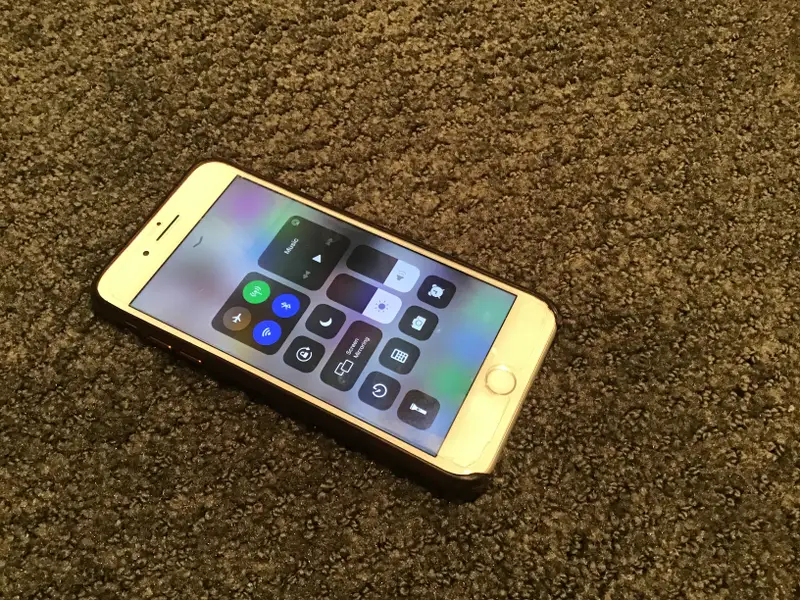
Your phone flashlight is not a separate component. It uses the same LED hardware as your rear camera flash. This means anything that blocks the camera can also block the flashlight.
Both iOS and Android share camera hardware access across apps. Only one app or function can use the camera LED at a time. If another app holds that resource, your flashlight icon goes grey or becomes unresponsive.
Common Reasons Why Your Flashlight Is Not Working
There is rarely just one cause. Most flashlight problems fall into one of these categories.
| Reason | iPhone | Android |
|---|---|---|
| Camera app open in background | ✓ | ✓ |
| Low battery or Low Power Mode | ✓ | ✓ |
| Phone overheating | ✓ | ✓ |
| Software glitch or bug | ✓ | ✓ |
| Outdated OS | ✓ | ✓ |
| Corrupted camera cache | – | ✓ |
| Third-party app conflict | ✓ | ✓ |
| Physical hardware damage | ✓ | ✓ |
Why Is My iPhone Flashlight Not Working?
iPhone flashlight problems are very common after an iOS update or when the phone runs hot. The good news is most fixes take less than two minutes.
iPhone Flashlight Is Greyed Out
A greyed-out flashlight icon almost always means the Camera app or a camera-dependent app like Snapchat or Instagram is running in the background. Your iPhone will not allow two processes to use the LED flash at the same time.
Swipe up from the bottom (or swipe up and hold on Face ID models) to open the app switcher. Swipe away every open app, especially the Camera. Then try the flashlight again from the Control Center.
iPhone Flashlight Not Working After iOS Update
A fresh iOS update can sometimes introduce a driver-level bug that affects the LED. Apple usually patches these within a few releases.
Go to Settings → General → Software Update and install any available update. After the restart, test the flashlight immediately before opening any other app.
iPhone Flashlight Button Missing from Control Center
If the flashlight icon has disappeared entirely from your Control Center, it was probably removed accidentally during a customization.
Go to Settings → Control Center → scroll down under “More Controls” → tap the green plus icon next to Flashlight to add it back.
iPhone Flashlight Not Working Because of Overheating
When your iPhone gets too hot, it disables the LED flash as a safety measure to protect the hardware. You will often see a temperature warning on screen.
Take the phone out of its case and place it somewhere cool and shaded for 15 to 20 minutes. Do not put it in a freezer. Once it cools to normal temperature, the flashlight should return automatically.
iPhone Flashlight Dim or Low Brightness
Sometimes the flashlight works but appears very weak. This usually happens when the brightness was accidentally set to the lowest level.
Long-press the flashlight icon on the Lock Screen. A brightness slider will appear. Drag it to the top to restore full intensity.
Why Is My Android Flashlight Not Working?
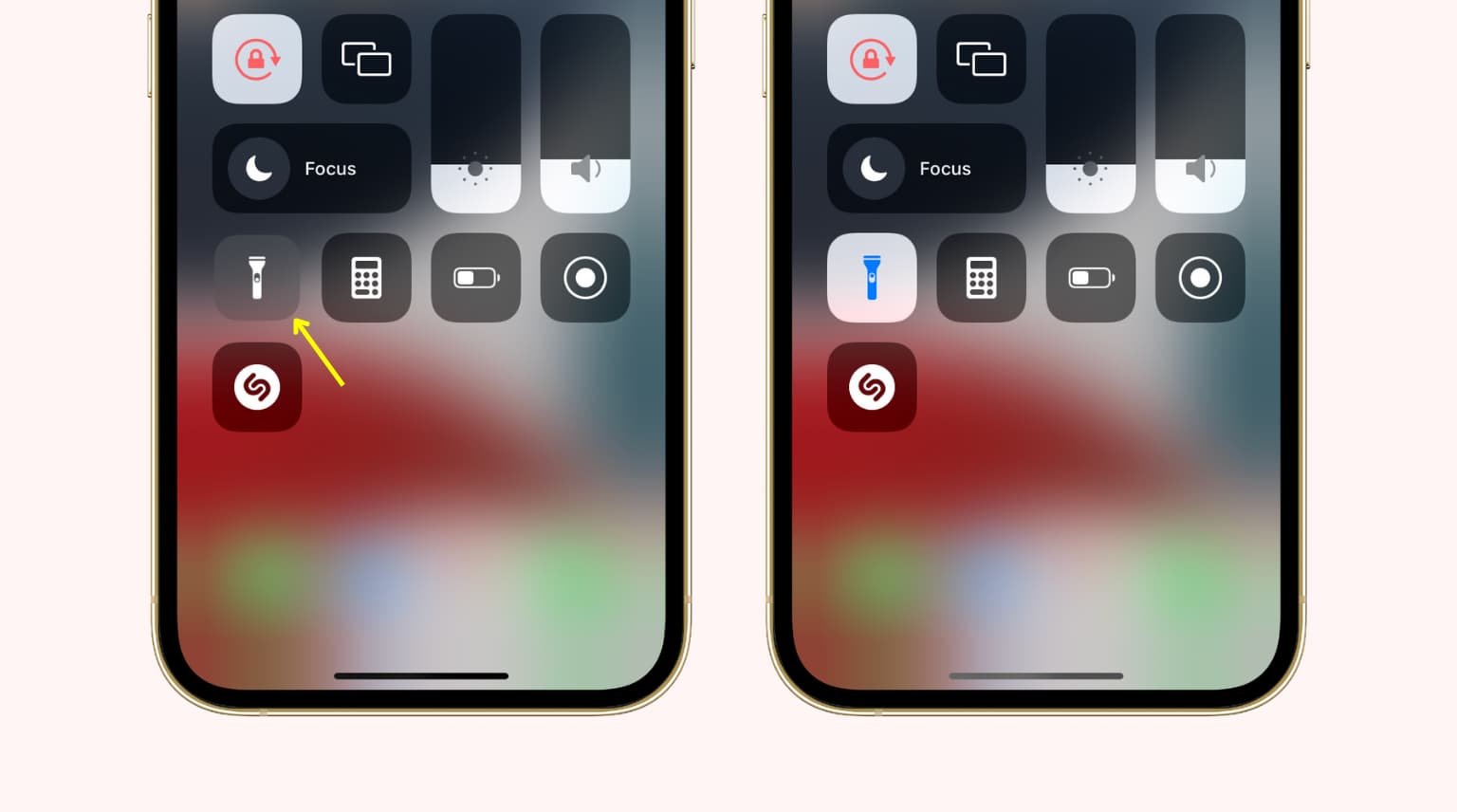
Android flashlight issues are slightly more varied because different manufacturers handle camera permissions and power management differently. Samsung, Pixel, OnePlus, and Xiaomi all have their own quirks.
Android Flashlight Not Working After Update
A system update can reset camera permissions or introduce a new bug in the Quick Settings panel. This is one of the most reported reasons on Android forums in 2025 and 2026.
Go to Settings → System → System Update and check if a newer patch is available. If the issue started right after updating, check the manufacturer’s support page for known bugs.
Flashlight Greyed Out on Android
Just like iPhone, Android will lock the LED if another app is using the camera. Social media apps like TikTok, Snapchat, and Instagram frequently hold camera access in the background even when you are not actively using them.
Open your Recent Apps view, swipe away everything, and then try toggling the flashlight from your Quick Settings tile by swiping down from the top of the screen.
Android Flashlight Not Working Due to Battery Saver Mode
Android’s Battery Saver or Power Saving Mode can disable several hardware features including the torch. Some manufacturers like Huawei and Samsung are aggressive about this.
Swipe down and look for the Battery Saver icon in Quick Settings. Tap it to turn it off. You can also disable it via Settings → Battery → Battery Saver → Off.
Clear Camera App Cache on Android
The flashlight on Android shares data with the Camera app. A corrupted or bloated cache can stop the flashlight from responding even when no other app is blocking it.
Go to Settings → Apps → See All Apps → Camera → Storage → Clear Cache. Do not tap Clear Data unless you are prepared to reset all your camera settings. Restart the phone and test again.
Android Flashlight Not Working in Safe Mode Test
Safe Mode loads only system apps and disables every third-party app. If your flashlight works in Safe Mode, a downloaded app is the culprit.
To enter Safe Mode on most Android phones, press and hold the Power button, then press and hold the “Power Off” option until a prompt appears asking you to enter Safe Mode. Tap OK. Once inside, test the flashlight. If it works, uninstall recently added apps one by one until the problem goes away.
Step-by-Step Fix Guide for Both iPhone and Android
Follow these in order. Most people fix the problem within the first three steps.
Step 1 — Close All Background Apps
Open the app switcher and swipe away every open app. Pay special attention to Camera, Snapchat, Instagram, TikTok, WhatsApp, and any QR code scanner.
This takes about 20 seconds and fixes the problem in a large number of cases. The flashlight cannot share LED hardware with a camera-using app.
Step 2 — Restart Your Phone
A full restart clears RAM, ends all background processes, and resets software states that a simple app-close cannot fix.
On iPhone with Face ID: hold the Side button and Volume Down together until the slider appears, slide to power off, wait 30 seconds, restart. On Android: hold the Power button and tap Restart. Once back on, test the flashlight before opening anything else.
Step 3 — Check Battery Level and Power Modes
Both iOS and Android automatically disable the flashlight when battery is critically low (usually below 10 to 20%). Low Power Mode and Battery Saver can trigger this even earlier.
Charge your phone above 30%, then turn off Low Power Mode (iPhone: Settings → Battery) or Battery Saver (Android: Settings → Battery). Try the flashlight again.
Step 4 — Let Your Phone Cool Down
The LED in your flashlight produces significant heat in a very small space. If the phone itself is warm from gaming, direct sunlight, or prolonged 4K recording, the system shuts down the flash to prevent damage.
Remove the case, set the phone screen-down in a shaded, ventilated area for 15 to 20 minutes. Do not use a freezer or place it next to air conditioning vents. Test the flashlight once it feels cool to the touch.
Step 5 — Update Your Operating System
Outdated software is a very common and overlooked cause of flashlight problems. A bug introduced in an older version may have already been fixed in a patch.
iPhone: Settings → General → Software Update. Android: Settings → System → System Update. Always back up your phone before installing a major update.
Step 6 — Reset All Settings (iPhone) or Clear App Preferences (Android)
Resetting settings does not delete photos or apps. It resets Wi-Fi passwords, wallpapers, and system preferences back to default. This often fixes deep configuration bugs.
iPhone: Settings → General → Transfer or Reset iPhone → Reset → Reset All Settings. Android: Settings → General Management → Reset → Reset App Preferences.
Step 7 — Check for Hardware Damage
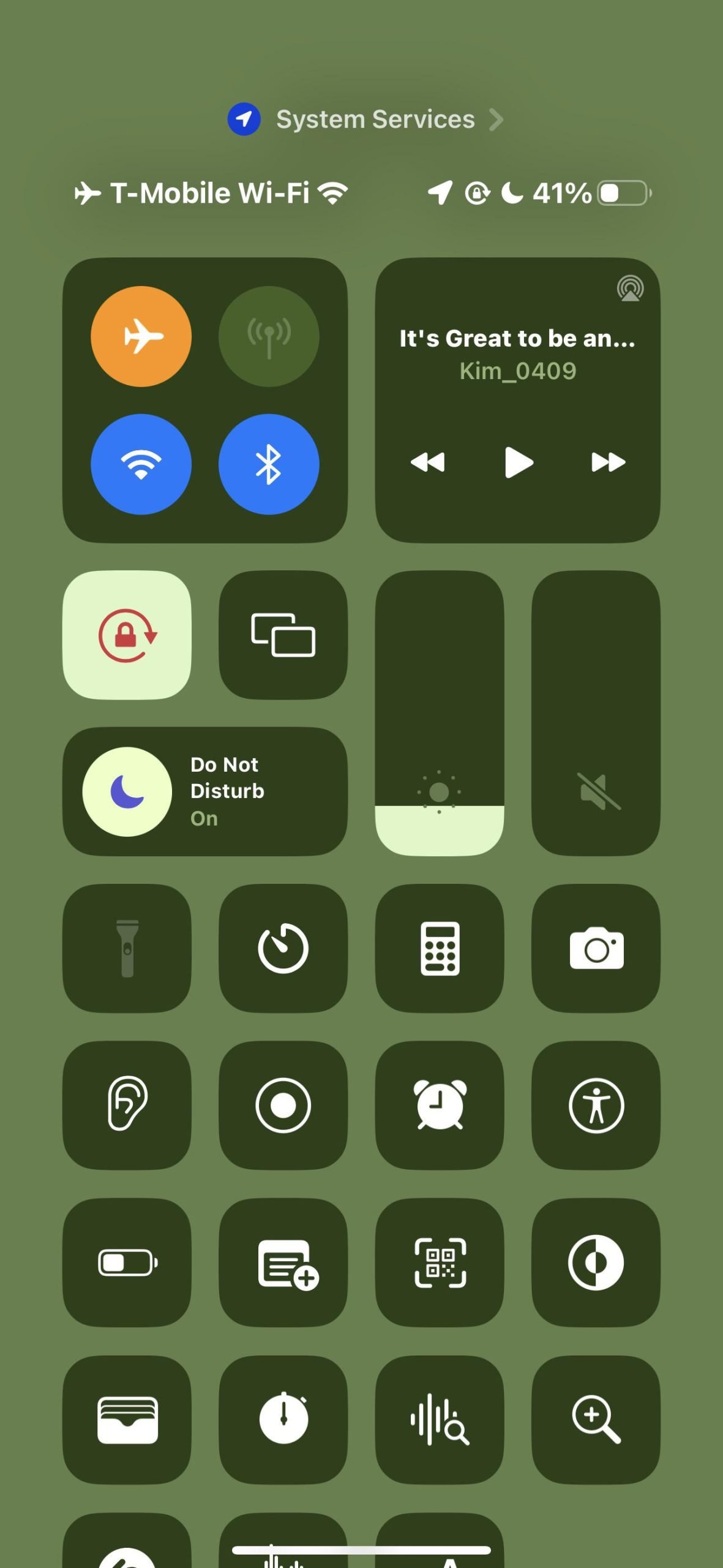
If none of the software fixes work, the LED hardware itself may be damaged. This is common after a drop, water exposure, or physical impact near the camera module area.
| Sign | Likely Cause |
|---|---|
| Flashlight worked fine until a recent drop | Physical LED damage |
| Camera also stopped working at the same time | Camera module failure |
| Flashlight flickers randomly | Loose internal connector |
| Flashlight works only when charging | Power delivery issue |
| Water damage sticker red or pink | Water ingress |
If you see any of these signs, take the device to an authorized repair center. Do not attempt to open the phone yourself.
iPhone vs Android: Quick Comparison of Flashlight Fixes
| Fix | iPhone Steps | Android Steps |
|---|---|---|
| Close camera apps | App Switcher → swipe up | Recent Apps → swipe up |
| Disable Low Power Mode | Settings → Battery → toggle off | Settings → Battery → Battery Saver off |
| Clear camera cache | Not applicable | Settings → Apps → Camera → Clear Cache |
| Update OS | Settings → General → Software Update | Settings → System → System Update |
| Reset settings | Settings → Reset → Reset All Settings | Settings → General Management → Reset |
| Safe Mode test | Not available on standard iOS | Hold Power → long press Power Off |
| Factory Reset (last resort) | Settings → Reset → Erase All Content | Settings → System → Factory Reset |
When Should You Visit a Repair Shop?
Try all software steps first. If the flashlight still does not work after a factory reset, the problem is almost certainly hardware.
A rear camera module replacement is the most common fix for a permanently broken flashlight. Most professional repair shops complete this job in under one hour. Call ahead to confirm they carry the part for your specific model before visiting.
How to Prevent Flashlight Problems in the Future
Keeping your phone flashlight working reliably comes down to a few simple habits.
Keep your OS updated regularly so driver bugs get patched quickly. Avoid leaving your phone in direct sunlight or in a hot car, as heat is one of the fastest ways to damage the LED. Close camera-heavy apps like Snapchat and Instagram fully when you are not using them instead of leaving them running in the background.
Also avoid installing random third-party flashlight apps. Both iOS and Android have solid built-in torch functions. Third-party apps add unnecessary camera permission complexity and can cause conflicts.
Flashlight Not Working on Specific iPhone Models
iPhone 15 and iPhone 16 Flashlight Issues
The iPhone 15 and 16 series use an Action Button that can be programmed to control the flashlight. If your flashlight is not responding to the Action Button, check that it is still assigned correctly under Settings → Action Button → Flashlight.
Also confirm the Dynamic Island or side button shortcut is still enabled. iOS updates occasionally reset Action Button assignments.
iPhone 13 and iPhone 14 Flashlight Issues
These models are more prone to the overheating issue during extended 4K video recording. The LED sits very close to the main camera sensor, and extended recording sessions heat the entire module.
After recording, allow the phone 10 minutes before expecting the flashlight to be available again.
Flashlight Not Working on Specific Android Models
Samsung Flashlight Not Working
Samsung phones running One UI can sometimes disable the torch after a routine update. The most reliable fix on Samsung is to open the Camera app, set the flash to Auto, exit the Camera, then try the Quick Settings torch toggle again.
This re-initializes the camera hardware driver and often restores the flashlight immediately without a restart.
Pixel Flashlight Not Working
On Google Pixel phones, a known bug in some Android versions causes the torch to stop responding after the phone wakes from sleep. A simple restart fixes it in almost every case.
If it happens repeatedly, check for a pending Android update via Settings → System → System Update, as Google often addresses this in monthly security patches.
Xiaomi and MIUI Flashlight Not Working
MIUI has aggressive battery optimization that can block the torch. Go to Settings → Battery → App Battery Saver and make sure the torch function is not restricted.
Also check that no MIUI permission cleanup tool has revoked camera access for system apps.
Does a Flashlight App Help If the Built-In One Fails?
It depends on the cause. If the problem is a software glitch in the Quick Settings panel, a third-party flashlight app sometimes bypasses it and works. But if the issue is a camera hardware conflict, overheating, or physical damage, no app will fix it because they all access the same LED hardware.
Use a third-party app only as a diagnostic tool. If it works, the built-in flashlight panel has a software bug. If it also fails, the issue is deeper.
Summary: Most Likely Fixes at a Glance
| Problem | Most Likely Fix |
|---|---|
| Flashlight greyed out | Close Camera and social apps |
| Flashlight not turning on | Restart the phone |
| Flashlight stopped after update | Update to latest OS version |
| Phone very warm, flashlight off | Let phone cool for 15 minutes |
| Low battery, torch not working | Charge above 30%, disable Battery Saver |
| Flashlight dims on its own | Adjust brightness via Lock Screen long-press |
| Nothing works at all | Hardware repair at authorized service center |
Frequently Asked Questions (FAQs)
Why is my flashlight not working on my iPhone?
The most common reasons are a Camera app running in the background, overheating, Low Power Mode being active, or a software glitch. Close all apps, restart your phone, and disable Low Power Mode to fix it in most cases.
Why is my flashlight greyed out on Android?
A greyed-out torch icon on Android usually means another app (like Snapchat or TikTok) is using the camera. Swipe away all recent apps and try again from Quick Settings.
Why did my flashlight stop working after an update?
Updates can introduce driver-level bugs that affect the LED. Install the latest available software patch and restart the device. Apple and Android manufacturers usually fix these within the next release.
Can overheating stop my flashlight from working?
Yes. Both iPhone and Android disable the LED flash when the device temperature gets too high to protect the hardware. Let the phone cool down in a shaded area for 15 to 20 minutes.
Why is my flashlight not working when battery is low?
iOS and Android automatically disable power-hungry features like the LED torch when battery drops below around 10 to 20%. Charge the phone and turn off Low Power or Battery Saver mode.
Does clearing the camera cache fix the flashlight on Android?
Often yes. Go to Settings → Apps → Camera → Storage → Clear Cache. This removes corrupted temporary data that can prevent the flashlight from initializing properly.
Why is my iPhone flashlight not working but the camera still works?
This usually points to a Control Center glitch or an app holding a partial lock on the LED. Force-close all apps, then try the flashlight icon from the Lock Screen instead of Control Center.
Can a third-party flashlight app fix the problem?
Sometimes, if the issue is a Quick Settings panel bug. But if the cause is hardware damage or overheating, no app will help because they all use the same LED component.
What does it mean if my flashlight flickers?
Flickering usually means a loose internal connector or a partially failing LED module. It can also happen when battery voltage is unstable. If it happens consistently, get the phone inspected professionally.
When should I take my phone to a repair shop?
If your flashlight does not work after restarting, updating, clearing cache, resetting settings, and doing a factory reset, the LED hardware is likely physically damaged. Visit an authorized service center for a camera module inspection.
Conclusion
Why is my flashlight not working is almost always a solvable problem, and most users fix it within the first two or three steps of this guide.
The most common culprits are a camera app running in the background, low battery, phone overheating, or a minor software bug that a restart clears instantly.
For Android users, clearing the camera cache and checking Battery Saver mode adds two more powerful tools to the troubleshooting list.
If every software fix fails and the flashlight still refuses to work, physical LED or camera module damage is the likely cause and a visit to a qualified repair technician is the right next step.
Keep your phone updated, avoid leaving it in the sun, and close camera apps properly after use.
A few simple habits will prevent most flashlight problems before they ever start.


