


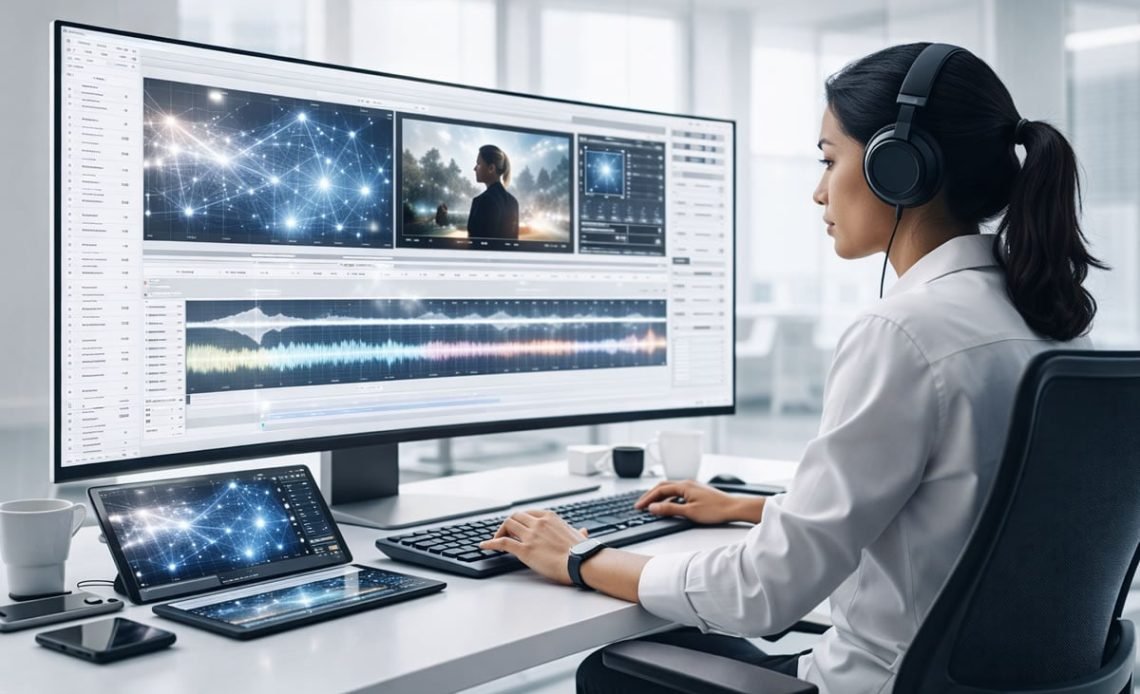
For the better part of two years, my editing workflow followed a predictable rhythm. Start with a clip in one AI tool for face replacement. Export it. Open a second tool for lip sync. Export it again. Move to a third tool for upscaling. Export once more. By the time I had applied three edits to a single piece of footage, I had spent more time managing file transfers and re-importing renders than actually making creative decisions. The tools themselves worked fine in isolation. The problem was the gap between them—the friction of exporting, re-importing, re-framing, and hoping that each successive tool would respect the work the previous one had done.
That routine changed when I started using a platform that approaches video-to-video AI as a single unified generator rather than a collection of standalone features. The difference is not about any single capability. It is about the absence of export breaks. Instead of treating character replacement, clothing swaps, face swaps, lip sync, upscaling, and duration extension as separate products, Video to video ai consolidates them into one consistent workflow. Upload once. Work within the same interface. Generate multiple versions of the same clip without ever leaving the environment.
From Feature-Hopping to Workflow-First Thinking
The shift from feature-hopping to workflow-first thinking is subtle but profound. When you use standalone tools, each one has its own interface logic, its own prompt structure, its own export settings. You constantly recalibrate your mental model every time you switch tasks. That recalibration cost is invisible but significant—it discourages iteration because every new attempt requires restarting the entire tool chain.
The unified generator approach removes that cost. The same four-step pattern applies to every model: upload the source video, add reference assets, write an edit prompt, generate the new version. Once you learn that pattern, you can apply it to character swaps, clothing changes, face replacements, dubbing, upscaling, and duration extension without learning six different interfaces. The workflow becomes the constant, and the creative task becomes the variable.
What the Unified Generator Actually Looks Like in Practice
To understand why this matters, it helps to walk through a realistic production scenario. Imagine you are working on a 15-second product video that needs four edits: replace the original talent with a different model, change the outfit color to match a new campaign palette, swap the face to align with regional marketing requirements, and upscale the final output for a 4K delivery spec.
With standalone tools, that is four separate exports and re-imports. With the unified generator, it is four passes through the same interface using the same source video as the motion backbone. The continuity means you can test combinations—try a character replacement first, then a clothing swap, then a face swap—and evaluate each step in context rather than in isolation.
Character Replacement and Clothing Swap: Motion as the Anchor
The Test Task
For the character replacement test, I used a 12-second walking shot with a subject moving across a moderately lit interior space. The goal was to replace the subject with a different character using two reference images—one frontal view and one side view—while keeping the original walking pace, head movement, and camera motion completely intact. For the clothing swap, I used the same clip to change the subject’s outfit to match a different garment reference, again using front and back views.
Why This Is Normally Difficult
The biggest challenge in character replacement is preserving motion fidelity. When you swap a subject, the new character needs to inherit the original performance—the gait, the timing, the subtle shifts in weight and posture. Most AI tools treat motion as a secondary concern and focus on static frame matching, which results in output that looks correct in still frames but feels wrong in motion.
Actual Performance
The platform preserved the original walking rhythm and camera motion with minimal drift. The new character stayed locked to the original movement arc, and the background remained stable throughout the clip. The clothing swap maintained the new garment’s visual identity across the full walking sequence, and the fabric did not warp or shift unnaturally during the turn. The consistency across frames was strong enough that I could not visually distinguish which frames were original and which were generated.
Strengths and Limitations
The multi-angle reference support appears to be a deliberate design choice for improving motion consistency. In my testing, providing both front and side references produced noticeably cleaner results than a single image. However, the output quality depends heavily on the reference assets themselves—poorly lit or low-resolution references introduced visible artifacts around the subject’s edges. The result may vary when the source video contains rapid occlusion or complex hand gestures, though for standard walking and speaking shots, the workflow felt reliable enough for concept previews and rapid iteration.
Who Benefits Most
Advertisers testing different talent options in a single shot, virtual production teams needing rapid scene redesigns, and content creators who want to repurpose existing footage with new characters or wardrobe variations without reshooting.
Face Swap and Lip Sync: Performance Preservation
The Test Task
The talking-head clip featured a subject speaking directly to camera with moderate head movement. For face swap, the goal was to replace the subject’s face with a different source face while preserving the original performance, camera motion, and shot timing. For lip sync, the goal was to replace the original audio with a different voice track while keeping mouth movements aligned to the new speech.
Why This Is Normally Difficult
Face swap tools frequently break down when the subject turns or when lighting changes across the frame. Lip sync tools often produce mechanical, disconnected mouth movements that feel divorced from the original performance. Both tasks require the AI to understand not just facial geometry but also the emotional timing and pacing of the delivery.
Actual Performance
The face swap output preserved the original shot structure and motion, and the replacement face tracked consistently even during slight head movements. The lip sync output maintained natural pacing and expression, with mouth movements aligning to the new speech without the exaggerated openness that plagues many dubbing tools. Neither output felt like a cheap deepfake—they looked more like competent compositing work.
Strengths and Limitations
The platform handles these tasks as integrated parts of the same editing pipeline rather than as standalone gimmicks. However, the face swap result is only as good as the source and target images provided. Poorly matched lighting or extreme angle differences between the source and target faces may produce visible seams. In my testing, using a source image with similar lighting to the target video produced the cleanest results.
Who Benefits Most
Localization teams needing multilingual versions of existing videos, content creators experimenting with character variations, and advertising agencies producing concept ads with different talent options.
Upscaler and Extend: Finishing Touches Without Leaving the Workflow
The Test Task
I ran a low-resolution archival clip through the upscaler to see whether it could recover detail rather than simply stretch pixels. Separately, I used the video extend workflow to add several seconds to a looping scene.
Why This Is Normally Difficult
Most upscalers add resolution without adding information—they make images bigger but not clearer. Most extend tools either repeat frames awkwardly or introduce abrupt visual breaks. Both problems stem from treating resolution and duration as mathematical problems rather than visual ones.
Actual Performance
The upscaler enhanced textures and edges in a way that made the footage look noticeably cleaner and richer. The difference was most apparent in skin tones and fabric details, which gained definition without appearing artificially sharpened. The video extend tool allowed me to control the added duration in seconds, and the generated extension maintained visual coherence with the original clip. Repeating the extend pass produced a longer loop without visible stitching artifacts.
Strengths and Limitations
These workflows are straightforward and produce consistent results for most footage types. However, the upscaler’s effectiveness depends on the source material—heavily compressed footage with blocky artifacts may not recover perfectly, though the improvement was still substantial in my tests. The extend tool works best for scenes with repetitive motion or static backgrounds; complex action sequences may require multiple attempts.
Who Benefits Most
Archivists restoring old footage, social media managers preparing content for different delivery specs, and editors adjusting scene pacing.
The Four-Step Flow That Replaces Six Different Interfaces
The platform’s unified generator follows a consistent pattern across all models, which is the primary reason it reduces friction. Instead of learning different interfaces for different tasks, you learn one workflow and apply it everywhere.
Step 1: Upload the Source Video
Start with the clip you want to transform while keeping its camera and motion structure intact. The source video serves as the motion backbone for every subsequent edit.
File Preparation Considerations
In my testing, clips with clear subject separation and consistent lighting produced better results than noisy or poorly exposed footage. The platform does not impose arbitrary length limits, though longer clips naturally require more processing time.
Step 2: Add Reference Assets
Upload supporting images or element packs that define the new visual target. For character replacement, this means reference images of the new character. For clothing swaps, this means front and back views of the new garment. For face swaps, this means a source face image and a target face image to identify which face in the video should be replaced.
Asset Quality and Consistency
The quality of the reference assets directly influences the final output. Well-lit, high-resolution references produced noticeably cleaner results than low-quality snapshots. The platform supports multi-angle asset packs for stronger consistency, which is particularly useful for character replacement and clothing swap workflows.
Step 3: Write the Edit Prompt
Reference the uploaded assets in the prompt and explain what should change or stay. The prompt acts as the creative brief for the generation, and the platform interprets natural language instructions without requiring technical syntax.
Prompt Crafting Tips
In my testing, prompts that explicitly referenced the uploaded assets and described the desired change in concrete terms produced the most reliable results. Vague prompts sometimes led to unexpected interpretations, while specific prompts yielded consistent outputs.
Step 4: Generate the New Version
Render the edited video and download the version that best fits the creative brief. The generation process runs entirely in the browser, and the output is available for download once processing completes.
Iteration and Refinement
The platform supports repeated generation attempts, which allows for creative exploration without penalty. In my testing, running multiple generations with slightly varied prompts or additional reference images produced a range of options that made it easier to select the best fit.
Comparison: Unified Workflow vs. Fragmented Toolset
| Aspect | Unified Video Generator | Standalone AI Video Tools |
| Use Process | One consistent 4-step flow for all tasks | Separate interfaces for each feature |
| Creative Control | Prompt + reference images + source video | Often limited to preset styles or single inputs |
| Learning Curve | Learn once, apply everywhere | New logic required for each tool |
| Scene Consistency | Preserves original motion and shot structure | Often breaks motion during transfer |
| Iteration Speed | Rapid re-generation within the same interface | Slower due to tool switching and re-exporting |
| Best Fit | Multi-edit workflows on the same footage | One-off edits or single-feature use cases |
Realistic Limitations
No AI video tool is perfect, and this one is no exception. Prompt quality significantly affects output quality. Vague or poorly structured prompts may produce results that miss the creative brief. Complex scenes with rapid motion, multiple subjects, or intricate backgrounds may require multiple generation attempts. The platform’s performance depends on the quality of the source video and reference assets. The results may vary between runs, which is typical for generative AI models.
Who This Workflow Actually Serves
This platform is most valuable for creators and teams who already know the specific editing problems they need to solve and want a focused tool that handles multiple related tasks in one place. For advertisers testing multiple creative variants, the character replacement and clothing swap workflows reduce the need for reshoots. For localization teams, the lip sync workflow streamlines multilingual production. For content creators repurposing footage, the upscaler and extend tools add flexibility without requiring additional software.
The platform does not replace traditional editing suites. It complements them by handling transformations that would otherwise require expensive VFX work or lengthy manual rotoscoping. For teams already working with AI video tools, the unified generator approach offers a practical alternative to juggling multiple standalone products.
The Takeaway: A Practical Tool for Real Production Workflows
After running real footage through multiple workflows, the platform delivers on its core promise: it consolidates complex video-to-video tasks into a single, repeatable process. The character replacement and clothing swap workflows preserved motion and shot structure better than I expected. The lip sync and face swap outputs felt natural rather than mechanical. The upscaler and extend tools provided genuine utility beyond basic resolution and length adjustments.
The platform is not without rough edges. Prompt quality matters, complex scenes may need multiple attempts, and the results are not guaranteed to be perfect every time. But for creators who need to iterate quickly and test multiple creative directions without leaving a single interface, the workflow-first design makes the entire process more practical than the fragmented alternatives. What impressed me most was the consistency of the underlying logic—upload a video, add references, write a prompt, generate a result. That pattern works for character swaps, clothing changes, face replacements, dubbing, upscaling, and duration extension alike. It is a simple framework that makes complex edits feel manageable, and in a field crowded with overhyped demos and underdelivering tools, that clarity is worth paying attention to.


