


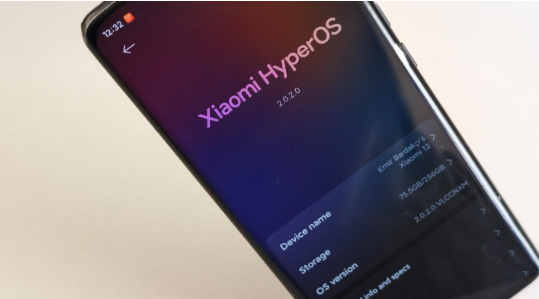
Introduction: Your Phone’s Health Is in Your Hands
Your phone stuck on the MIUI logo or blank screen can cause worry. Users believe their phones are dead forever. Fortunately, this is not always true. In many circumstances, the problem can be solved. Even better, many issues can be prevented. Prevention is cheaper, easier, and protects images and information. This guide teaches easy Xiaomi phone protection habits. You’ll also learn how to repair Android without data loss.
Part 1: Why Xiaomi Phones Need Extra Vigilance
Xiaomi phones offer strong features at a fair price. This makes them very popular. But this balance can also bring software challenges. MIUI and HyperOS are powerful systems, yet they can be sensitive during updates. A small issue, like a low battery or weak Wi-Fi, can cause boot loops or black screens.
Updates are helpful, but they are also a risk point. If an update stops midway, system files may break. This can lead to soft bricks. Security is another reason to stay alert. Like all software, MIUI can have hidden issues. In recent years, many security flaws have been found and fixed through updates. This shows why careful updates, clean apps, and safe habits matter. With simple care, most problems can be avoided.
Part 2: Your Prevention Toolkit – 5 Essential Habits
Now let’s talk about how to protect your phone every day. These habits are simple but very powerful.
Master the Update Ritual
Never update your phone when the battery is low. Always charge it above 50%. Use a strong and stable Wi-Fi. Before tapping “Install,” make sure your data is backed up. For big updates, wait a few days. This helps you avoid early bugs that other users may report.
Become an App Installation Guru
Only install apps from trusted places. Use the Google Play Store or Xiaomi GetApps. Avoid unknown app files from websites. These apps may carry bugs or malware. Always check app permissions. If an app asks for too much access, avoid it.
Embrace the Power of Backups
Backups are your safety net. Use Xiaomi Cloud to save settings and app data. Backup files and photos using Google One. MIUI’s Backup & Restore feature allows local backups. Data remains safe if something breaks.
Manage Your Phone’s “Immune System”
Use Xiaomi’s Security app often. Run scans to remove junk files and detect threats. If your phone acts strangely, try Safe Mode. Hold the Volume Down button during boot. This turns off third-party apps and helps find the problem app.
Avoid Risky Modifications
Rooting and custom ROMs incite excitement but are risky. They can brick phones, void warranties, and break banking apps. You should avoid hazards until you understand them.
Part 3: When Prevention Fails – Recognizing System Trouble
Despite good behaviors, difficulties can arise. Here, you must notice warning flags early. A significant system issue differs from an app crash.
- A boot loop is one of the most common indicators when the device keeps restarting and showing the Xiaomi or POCO logo over and over again.
- Another sign is the black screen of death, the phone might vibrate or ring but the screen stays completely dark.
- System error signals may indicate device corruption.
- A failed update may cause the phone to be stuck or unresponsive. These indications suggest system maintenance.
Part 4: The Repair Roadmap – Fixing Issues Without Losing Data
Stay cool if your phone has major system issues. Step-by-step fixes are preferable for data preservation. Always choose safety first.
Method 1: Basic First Aid (No Data Loss)
This is the first thing that any user should try.
Sometimes, a force restart is enough to fix a number of your system freezing issues on a minor scale. Press and hold the Power and Volume Up keys at the same time for a several seconds, your phone will turn back on.
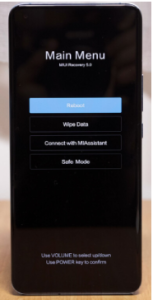
If the phone turns on but performs strangely, try Safe Mode. Safe Mode loads only system apps. This identifies malicious apps. Uninstall any pre-problem apps in Safe Mode. Try restarting the phone normally to see if it fixes it.
Method 2: Dr.Fone System Repair (No Root, No Data Loss)
A safer Android repair tool is needed if simple processes fail. Dr.Fone – System Repair (Android) helps. This is between basic fixes and a factory reset. The tool fixes system files without affecting personal data.
Dr.Fone supports many Xiaomi and Android versions. Boot loops, dark screens, frozen logos, and update crashes are fixed. Simple, guided steps make it easy for beginners. Though expensive, it safeguards your files and has a high success rate.
- Enter & exit Fastboot / Download Mode easily without button combinations and fix Xiaomi stuck on fastboot
- High success rate (up to 99%) backed by advanced repair technology
- Wide device compatibility, including Samsung, Xiaomi, Redmi, and POCO phones & tablets
- Fast repair process – typically takes around 10 minutes after firmware download
- Encrypted and secure repair process to protect user privacy
- At-home repair solution – no need to visit offline repair shops
Steps to use Dr.Fone – System Repair (Android):
Step 1. Install and launch Dr.Fone on your computer. Select “System Repair > Android Repair > Repair Now.”
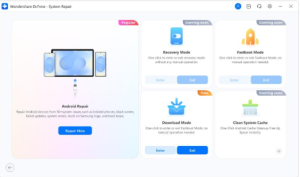
Step 2. Connect your phone and choose a brand and model.
Step 3. Enter repair mode and download firmware using the on-screen instructions.
Step 4. Click “Fix Now” and let it finish. Restart your phone.
Method 3: Last Resort (High Data Loss Risk)
Factory resets should only be utilized when all else fails. This will delete all data.
Navigate to Settings > About phone > Backup & reset > Factory data reset.
Visit an authorized Xiaomi service center if the phone still doesn’t operate. This matters if hardware damage is detected.
Conclusion
A bricked phone is worrisome, but not always fatal. Many Xiaomi system issues are software-based and safe to fix. Start with easy actions and progress to advanced tools if needed. Avoid dangerous data deletion. Most phones function again with patience and the appropriate method. Smart maintenance and prevention are the keys to phone safety.

