


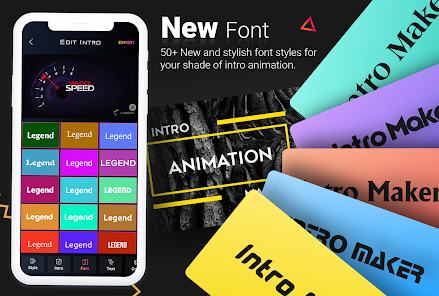
A content creator editing videos on a mobile phone often needs quick and flexible tools to enhance visuals without relying on desktop software. In such situations, mobile apps make it easy to design eye-catching effects on the go. With a powerful animated text maker, creating text animation has become simple, fast, and highly accessible for everyone.
This guide explores how mobile applications enable users to transform plain text into dynamic motion graphics in minutes. From social media posts to short videos, these tools help beginners and creators produce engaging, professional-looking content with ease, anytime and anywhere.
Part 1. Create Animated Text Benefits: Why Mobile Apps Are Popular
With a modern animated text maker, mobile apps have made text animation more accessible and practical for everyday content creation. Instead of relying on complex desktop tools, users can now design engaging visuals directly from a smartphone. Here are the key reasons why mobile apps are becoming so popular:
- Easy Editing on the Go: Mobile apps enable quick creation and editing of animated text, making it ideal for fast-paced content workflows.
- No Need for Advanced Software: Simple interfaces eliminate the need for professional editing skills, allowing beginners to produce polished results with minimal effort.
- Perfect for Social Media Content: Apps are optimized for platforms like Instagram, TikTok, and Facebook, helping creators produce eye-catching posts and reels instantly.
- Quick Sharing Options: Finished animations can be exported and shared directly to social platforms without extra steps.
- Creative Templates and Presets: Built-in styles, fonts, and motion effects make it easy to design attractive animated text in seconds.
Part 2. Animated Text Maker Workflow: How the Mobile Filmora App Works
Creating engaging videos on mobile has become much easier thanks to powerful editing apps. The Filmora App [iOS/Android] offers a smooth, intuitive text animation feature that lets users turn plain captions into dynamic motion graphics directly on a smartphone. This video editor for PC and smartphone is designed for simplicity, making it easy for beginners and content creators to produce professional-looking results without complex editing skills.
The mobile app provides a wide range of built-in text styles, motion presets, and customizable templates that help bring text animation to life in just a few taps. Users can easily adjust fonts, colors, timing, and animation effects to match the mood of their video. Whether creating short social media clips, vlogs, or promotional content, the Filmora mobile workflow ensures fast editing and creative flexibility.
Key Features
- Multiple Preset Animation Options: A wide collection of ready-made text animation presets allows users to quickly apply stylish motion effects without manual setup.
- Apply to All Clips Feature: Once a text animation is created, it can be instantly applied across multiple clips to maintain consistency throughout the video.
- Position and Direction Control: Text can be freely repositioned on the screen, and animation direction can be adjusted to match the video flow and visual style.
- Add Text Art and Styling Elements: Creative text art options help enhance visuals with decorative fonts, shapes, and design elements for more engaging content.
- Custom Timing Adjustments: Animation speed and duration can be fine-tuned to match scene transitions and improve storytelling impact.
Step-by-Step Guide on How to Apply Text animation Using the Filmora App
As discussed, Filmora allows users to create animated text according to their preferences. Provided below is a step-by-step guide on how to use the Filmora App for text animation:
Step 1. Select Text Tool
To begin, launch the application on the smartphone and create a new project. Next, import the video that requires text animation. Next, tap on the “Text” icon located in the toolbar at the bottom.
Step 2. Input Text and Customize
Moving forward, input the text using the keyboard and tap on the “Tick” icon. Now, apply the “Art Text” to the text added and successfully proceed.
Step 3. Access the Text Animation
Navigate into the “Animation” section and select the right option from the provided list. Apply the animation by tapping on the Tick icon and pressing “Export” to save the final result to the device.
Part 3. Text Animation on Mobile: Can Apps Replace Desktop Tools?
With the rise of mobile editing, many creators now use apps to handle text animation tasks. These tools are designed for speed and convenience, making video creation possible anytime without complex setups or technical expertise, especially for quick social media content.
Apps Offer Simple and Fast Access
Mobile apps offer a fast and simple workflow for creating text animation. Users can apply presets, adjust styles, and export videos within minutes. This makes them ideal for beginners or creators who need quick results while editing on the go without advanced technical skills.
Desktop Tools Offer Advanced Control
Desktop tools, on the other hand, provide advanced control over text animation. These animated text makers offer deeper customization, precise timing adjustments, and professional-grade effects. These platforms are better suited for detailed projects where creative flexibility and high production quality are required.
When to Use Each Option
When choosing between mobile apps and desktop software for text animation, the decision depends on the type of project, time availability, and level of control needed. Here are the best scenarios for each option:
- Social Media Content Creation (Mobile Apps): Mobile apps are ideal for creating quick reels, stories, and short videos where fast editing and instant publishing are required.
- On-the-Go Editing (Mobile Apps): When working outside or without access to a computer, mobile tools allow easy text animation creation anytime, anywhere.
- Professional Video Production (Desktop Tools): Desktop software is better for high-quality projects like advertisements, YouTube videos, and branded content that require advanced customization.
- Detailed Motion Design (Desktop Tools): Complex text animation effects, layered editing, and precise timing adjustments are best handled on desktop platforms.
Conclusion
This article provided an easy approach to generating text animation using a smartphone, making video creation more accessible than ever. Mobile apps now allow quick editing and instant results for modern content needs. For better quality and convenience, the Filmora App is a great choice for creating engaging animated text effortlessly.
Note to the Reader: This article is editorially independent and intended for general information. It does not represent the official stance of any affiliated media organization.


