


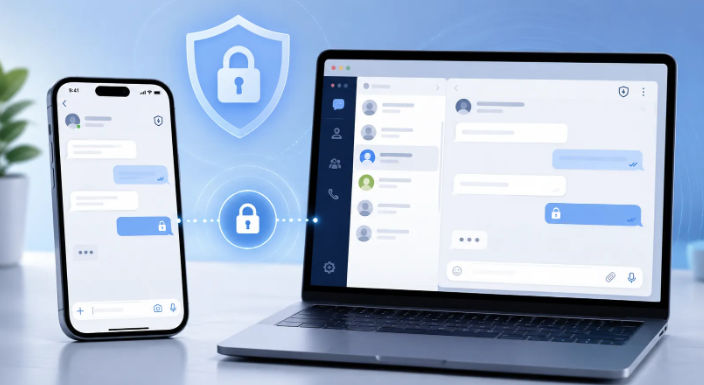
Messaging apps have become part of everyday communication for work, family, communities, and personal conversations. Many people no longer use these platforms on a single device. A conversation might begin on a smartphone, continue on a desktop computer, and later be checked from a browser or tablet.
That flexibility is useful, but it also creates more security and privacy decisions. Every additional client, active session, shared file, and network connection becomes another part of the setup that users need to understand and manage.
A safer messaging setup therefore involves more than simply installing an app. Users should choose the right client for each device, verify where software comes from, review active sessions, and configure privacy and account protections before problems occur.
Cross-device messaging security across phone and desktop.
Choose the Correct Client for Each Device
Most major messaging platforms support several operating systems, but the available client options are not always identical. Before installing anything, users should determine which client is appropriate for their device and how it fits into their communication workflow.
- Android smartphones and tablets
- iPhone and iPad
- Windows PCs
- macOS computers
- Browser-based access
- Dedicated desktop applications
For example, users comparing mobile and desktop options may find a Telegram client selection guide useful when reviewing available client types and basic device considerations.
A browser session may be convenient on a temporary computer, while a dedicated desktop application may make more sense on a personal workstation. Mobile apps are useful for communication on the move, while desktop clients are often easier for handling documents, longer messages, and work-related conversations.
As with any third-party guide, users should still verify the actual software publisher and trusted distribution source before downloading or installing a client. A page that offers an unexpected operating-system version, unusual extra features, or a modified build should be treated cautiously.
Verify Installers, Publishers, and Updates
One of the most important security habits is to be deliberate about where software comes from. Messaging software may appear as an Android APK, Windows EXE installer, macOS package, browser extension, ZIP archive, or unofficial modified client.
The existence of a downloadable file does not prove that it is trustworthy. Modified applications may promise extra features, fewer restrictions, hidden privacy functions, or interface customizations, but users often have no practical way to verify what has been changed inside the software.
Before installing or updating a messaging application, check the developer or publisher, confirm that the package matches the intended operating system, and prefer established app stores or the software publisher’s verified distribution channels. On Windows, digital-signature and publisher information can provide another useful signal.
Updates deserve the same caution as first-time installations. Fake update prompts and third-party download pages can imitate normal software maintenance, so users should avoid updating an app from a link received in an unsolicited message or unfamiliar pop-up.
Be More Careful on Public Wi-Fi
Messaging apps are frequently used while traveling, working from cafés, waiting at airports, or staying in hotels. Modern messaging services commonly protect data in transit, but public Wi-Fi can still expose users to phishing pages, fake captive portals, malicious downloads, and unsafe device or network configurations.
- Confirm the correct network name when possible
- Avoid installing software offered by a Wi-Fi login page
- Be cautious with unexpected redirects and certificate warnings
- Avoid sensitive account changes on an untrusted shared computer
- Do not assume a hotspot is legitimate because its name matches the venue
Highly sensitive account changes, such as modifying recovery information or security settings, are better performed on a trusted device and network whenever practical.
Review Active Sessions Regularly
Multi-device access is one of the most useful features of modern messaging platforms, but it can become a security problem when old sessions are forgotten. A previous smartphone, old laptop, shared computer, browser session, or temporary travel device may remain connected long after it is no longer needed.
Review active sessions periodically and remove devices you no longer use. An unfamiliar session should be investigated promptly, especially after losing a phone, selling a device, using a shared computer, changing account credentials, or receiving an unexpected login alert.
Session management should be treated as routine account maintenance rather than something users think about only after a security incident.
Enable Two-Step Verification Where Available
Where a platform offers two-step verification, enabling it adds another layer of protection beyond a one-time login code. Depending on the service, this may involve an additional password, authentication method, or recovery mechanism.
Verification codes should also be treated as temporary credentials. A legitimate administrator, moderator, support representative, or community member should not need another person’s login code.
Common social-engineering messages may claim that:
- An account needs to be verified immediately
- A support agent needs a code to fix a problem
- A group administrator is confirming identity
- A prize or giveaway requires account verification
- A friend accidentally sent a code to the wrong number
Requests like these should be treated with suspicion. Sharing a login or verification code can allow another person to gain access to the account.
Keep Privacy Settings Consistent Across Devices
Privacy settings are easy to configure once and then forget. Users should periodically review phone-number visibility, profile photos, last-seen information, group invitations, direct messages, location sharing, and public usernames.
Public groups deserve particular attention because they may expose more profile information than a small private conversation. Users should understand which information is visible to contacts, group members, strangers, or the general public.
It is also worth revisiting privacy settings after major app updates. Interfaces change, new features are introduced, and additional controls may become available.
Be Careful With Files Shared in Groups
Messaging apps are increasingly used for file sharing, including PDFs, photos, videos, spreadsheets, archives, documents, and software installers. A file arriving through a trusted messaging platform is not automatically trustworthy.
The security of the platform and the trustworthiness of the sender are separate issues. Accounts can be compromised, public groups can contain unknown members, and files can be forwarded without the sender fully understanding their contents.
Executable files deserve particular caution, including APK and EXE files, scripts, browser extensions, and unusual archives. If a file is unexpected, verify why it was sent before opening it. Automatic media-download settings can also be adjusted to reduce unnecessary storage use and limit unwanted downloads.
Control Notifications Without Missing Security Alerts
Notifications are usually discussed as a productivity issue, but they also have a security role. When users receive hundreds of alerts from active groups, important account notifications can become easy to overlook.
A better approach is to separate:
- High-priority personal conversations
- Work or project groups
- Large community channels
- Promotional notifications
- Security and login alerts
Low-priority groups can be muted while account-security alerts remain enabled. This reduces distraction without making unusual account activity easier to miss.
Messaging App Security Checklist
A simple checklist can help users maintain a consistent setup across devices.
| Check | What to Review |
| Client | Use the correct client for the operating system |
| Source | Verify the software publisher and distribution source |
| Updates | Avoid unsolicited update links and modified installers |
| Network | Be cautious on unfamiliar public Wi-Fi |
| Account | Enable two-step verification where available |
| Sessions | Remove old or unfamiliar logged-in devices |
| Privacy | Review profile and contact visibility |
| Files | Avoid unexpected or unverified downloads |
| Notifications | Keep important security alerts visible |
| Recovery | Maintain accurate recovery information |
Final Thoughts
Using messaging apps across phones and computers can make communication faster and more flexible, but convenience should be paired with basic security habits.
Users should choose the appropriate client for each device, verify software sources, manage active sessions, enable additional account protection, and remain cautious about files and links shared through groups.
The goal is not to make messaging complicated. It is to create a setup that remains easy to use without leaving unnecessary security gaps. A few minutes spent reviewing devices, privacy settings, downloads, and account protection can prevent much larger problems later.

