


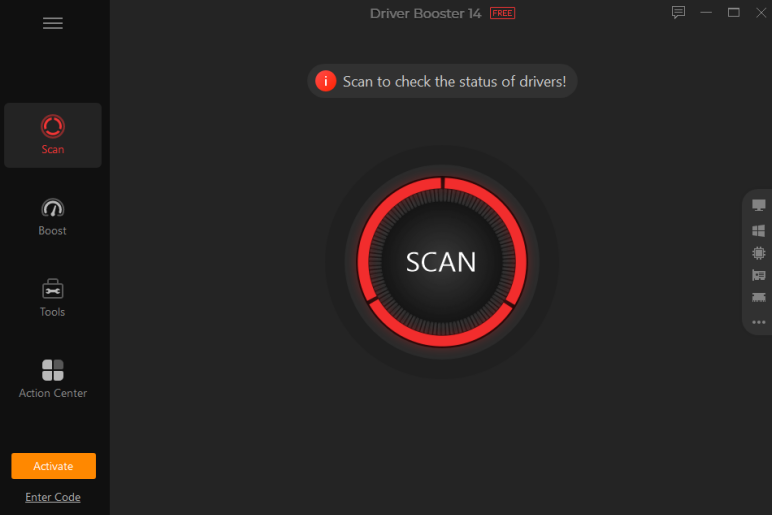
Network connection problems can occur due to multiple reasons. It might be because your Wi-Fi is disconnected or windows fail to detect the network adapter. Even though routers or network settings can cause these problems commonly but sometimes device drivers can also be the reason behind this. A network driver helps windows to communicate with your network source in your PC. If it is outdated or missing, there could be a problem with it. This is where you should consider using driver updater such as Driver Booster can help.
This can help you to scan the PC, review available driver versions, and install a suitable one from within the program instead of finding the correct network driver manually.
What Is Driver Booster?
Developed by IObit, Driver Booster is a Windows utility designed to find, update, and manage device drivers. It supports a large range of PC hardware, including network adapters, graphics cards, sound devices, printers, and other components.
Driver Booster 14 has an online database containing more than 23 million drivers. This wider coverage can be useful when Windows has difficulty identifying older hardware or when you cannot easily find the right driver on your own.
The latest version also adds multi-version scanning. Instead of only looking for the newest driver, it can identify both the latest and most stable available versions. This gives you more control when choosing a driver for your network adapter.
Main Features That Can Help With Network Problems
Here are the key features that you must know about IObit Driver Booster.
1. 23M+ Driver Database
Driver Booster 14 covers more than 23 million drivers for a wide range of hardware. This includes network devices used for Wi-Fi and wired connections. The larger database can make it easier to find a suitable driver when Windows does not provide one.
2. Latest and Stable Driver Options
A newer driver is not always the option you want when troubleshooting a connection problem. Driver Booster can identify both newer and more stable driver versions, allowing you to select an available version based on your needs.
3. Improved Driver Installation
The updated installation engine is designed to handle driver installations more smoothly. This is particularly useful when replacing an existing network driver, as the network connection may briefly stop while Windows switches drivers.
4. Driver Backup and Restore
Before making driver changes, having a backup can be helpful. Driver Booster provides driver backup and restore options, along with the ability to create a system restore point before updates. If a new driver causes another problem, you have a way to return to the earlier setup.
5. Offline Driver Updater
A broken network adapter creates a problem when you need an internet connection to download its driver. Driver Booster’s Offline Driver Updater is designed for PCs without internet access, such as a computer with a fresh Windows installation and no working network driver.
How to Use Driver Booster to Fix a Network Connection?
When a network adapter is not working correctly, an outdated or damaged driver can sometimes be the reason. Driver Booster can scan your PC, find driver issues, and help you install a suitable replacement. Follow these steps to check your network driver.
Open Driver Booster
Install Driver Booster on your Windows PC and launch it. From the main screen, start a driver scan. If your PC has no internet connection, you may need to use the Offline Driver Updater to get the required driver onto the system.
Check the Scan Results
Wait for the scan to finish and review the list of drivers. Look for entries related to your Wi-Fi adapter, Ethernet controller, or other network hardware. If Driver Booster finds an outdated driver, check its details before proceeding with the update.
Select the Available Driver
Choose the network driver you want to install. With newer Driver Booster versions, you may see more than one driver version, giving you the option to use a newer release or a stable version. Pick the option that fits your troubleshooting needs rather than changing drivers without a reason.
Install and Restart
Start the driver installation and allow Driver Booster to complete the process. Your network connection may stop briefly while Windows replaces the current driver. Do not shut down the PC during installation. Restart Windows afterward if prompted.
Check Your Connection
Reconnect to Wi-Fi or Ethernet and test the internet. Open websites or use the service that was giving you trouble before. If the connection remains unstable after the update, you can use Driver Booster’s backup or restore options to return to the previous driver.
Tips for Fixing Network Problems with IObit Driver Booster
If you are using Driver Booster, a few simple checks can make the troubleshooting process easier:
- Scan before updating:Run a full scan first instead of guessing which network driver needs attention. This helps you identify the network-related entry in the results.
- Focus on the network adapter:You do not have to update every driver shown in the scan. If your main problem is internet access, start with the Wi-Fi or Ethernet driver.
- Create a backup first:Before replacing a working driver, back up the current version. If the new driver creates another problem, you have the option of going back.
- Restart after installation:Windows may not fully load the updated network driver until the computer has been restarted. If Driver Booster recommends a restart, do it before testing the connection.
- Use Offline Driver Updater when needed:If the PC cannot get online because its network driver is missing, an offline driver update can provide a way to install the required driver without relying on that connection.
Final Thoughts
If your network driver is faulty or outdated, it can cause internet connection problems. Finding the right driver can be frustrating, especially when you do it manually without knowing the right version for your network adapter. IObit driver booster is here to make things easier for you. It scans your PC, check network adapter and choose the right driver all by itself. As a result, you can have a reliable connection without any problems.

