


How to cancel Amazon Music is a question thousands of users search daily when they want to end their subscription and avoid unnecessary charges.
Whether you’re switching to Spotify, cutting monthly expenses, or simply not using the service anymore, knowing the correct cancellation steps saves you time and money.
This comprehensive 2026 guide walks you through every method to cancel Amazon Music Unlimited on iPhone, Android devices, and web browsers, plus troubleshooting tips for common issues.
You’ll also discover what happens to your playlists after canceling, refund policies, and smart alternatives before making your final decision.
Understanding Amazon Music Subscription Plans Before Canceling
Amazon offers multiple music subscription tiers, and identifying yours is crucial for successful cancellation.
Amazon Music Free is the ad-supported basic tier that requires no cancellation since it’s completely free. This version has limited features and song selections.
Amazon Music Prime comes bundled with your Amazon Prime membership at no additional cost. You cannot cancel this separately without canceling your entire Prime subscription.
Amazon Music Unlimited is the premium standalone subscription offering 100 million ad-free songs. This can be canceled independently anytime without affecting other Amazon services.
Amazon Music HD was previously a separate high-fidelity tier but now merges with Music Unlimited. If you subscribed before the consolidation, cancellation follows the same process.
Family Plans support up to six users for $19.99 monthly while Individual Plans cost $10.99. Single Device Plans designed for Echo devices run $4.99 monthly.
Student Plans offer discounted pricing at $5.99 per month for verified students. These plans have the same cancellation procedures as regular subscriptions.
Why Users Choose to Cancel Amazon Music Subscriptions

Multiple reasons drive subscribers to cancel their Amazon Music memberships each month.
Cost concerns top the list as users seek cheaper alternatives or eliminate non-essential expenses. With inflation affecting household budgets, subscription services often get cut first.
Service dissatisfaction including limited song availability, poor recommendations, or technical glitches frustrates users. Some find competitor platforms offer better user experiences.
Platform switching happens when users prefer Spotify’s social features, Apple Music’s ecosystem integration, or YouTube Music’s video content. Each platform has unique strengths.
Duplicate subscriptions occur when households have multiple streaming services with overlapping content. Consolidating to one service saves money without sacrificing variety.
Minimal usage patterns emerge when subscribers realize they rarely listen to music anymore. Paying monthly fees for unused services makes no financial sense.
Free trial expirations catch users off-guard who forget to cancel before charges begin. Setting reminders prevents unwanted billing.
How to Cancel Amazon Music on Web Browser (Desktop & Mobile)
The web browser method provides the easiest cancellation path for most users.
Visit Amazon.com and log into your account using the email and password associated with your subscription. Ensure you’re accessing the correct account if you manage multiple profiles.
Click Account & Lists in the top-right navigation menu. A dropdown appears with various account management options.
Select Memberships & Subscriptions from the dropdown to view all active services. This section displays Prime membership, digital subscriptions, and recurring deliveries.
Locate Amazon Music Unlimited in your subscription list and click it. The page shows your current plan type, billing date, and payment method.
Find the Subscription Renewal section with details about your next charge. Look for the Cancel Subscription button or link.
Click Cancel Subscription and Amazon displays retention offers. These might include discounted rates, pause options, or plan downgrades.
Choose your cancellation reason from the dropdown menu if prompted. Options typically include “too expensive,” “switching services,” or “not using it.”
Confirm your decision by clicking Confirm Cancellation or similar final button. Amazon processes the request immediately.
You receive an email confirmation within 5-10 minutes to your registered address. Save this email as proof of cancellation in case billing disputes arise.
Your subscription remains active until the current billing period ends. Continue enjoying premium features without additional charges through that date.
How to Cancel Amazon Music on Android Devices
Android users have two primary cancellation paths depending on subscription origin.
Method 1: Through Amazon Music App
Open the Amazon Music app on your Android smartphone or tablet. Ensure the app is updated to the latest version for full functionality.
Tap the Settings icon (gear symbol) located in the top-right corner. This opens your account settings menu.
Scroll to the Account section and tap Amazon Music Unlimited. Your subscription details appear including plan type and renewal date.
Select Cancel Subscription from the available options. Some Android versions display this as “Manage Subscription” instead.
Review the information Amazon presents about what you’ll lose. This includes offline downloads, ad-free listening, and unlimited skips.
Tap Confirm to complete the cancellation process. The app may redirect you to the mobile browser to finalize cancellation.
If redirection occurs, follow the web browser steps outlined in the previous section. This is common on newer Android versions.
Method 2: Through Google Play Store
If you subscribed through Google Play, cancellation must occur in that platform.
Open the Google Play Store app on your Android device. Tap your profile icon in the top-right corner.
Select Payments & Subscriptions from the menu that appears. Then tap Subscriptions to view all active services.
Find Amazon Music in your subscription list and tap it. Details about billing cycle, next payment, and plan type display.
Tap Cancel Subscription at the bottom of the screen. Google asks for cancellation confirmation.
Confirm your choice and Google processes the cancellation immediately. You retain access until the paid period expires.
Google sends cancellation confirmation to your Gmail address. Check your inbox and save the email for records.
How to Cancel Amazon Music on iPhone and iPad (iOS Devices)
iPhone users face different cancellation requirements due to Apple’s App Store policies.
Method 1: Using Mobile Safari Browser
The Amazon Music iOS app doesn’t support direct cancellation for subscriptions purchased through Amazon.
Open Safari or your preferred mobile browser on your iPhone or iPad. Navigate to Amazon.com in the address bar.
Tap the hamburger menu (three lines) if the mobile site loads. Select Sign In and enter your credentials.
After logging in, tap the account icon and select Account & Lists. Choose Memberships & Subscriptions from options.
Follow the same web cancellation steps outlined earlier. Locate Amazon Music Unlimited, select cancel, and confirm.
The mobile browser interface works identically to desktop for subscription management. All features and options remain available.
Method 2: Through iOS Settings (App Store Subscriptions)
If you subscribed via the Apple App Store, use iPhone Settings for cancellation.
Open the Settings app on your iOS device. Tap your name at the top to access Apple ID settings.
Select Subscriptions from the account menu. All App Store subscriptions appear in this list.
Tap Amazon Music to view subscription details. Information includes renewal date, plan type, and pricing.
Select Cancel Subscription near the bottom of the screen. iOS asks for confirmation before processing.
Tap Confirm to finalize cancellation. Apple processes the request and sends email confirmation.
Your subscription continues until the next billing date. Apple won’t charge your payment method after that date.
Canceling Amazon Music Through iTunes on Mac or Windows
Desktop iTunes users who subscribed through Apple must use iTunes for cancellation.
Launch iTunes on your Mac or Windows computer. If you don’t have iTunes installed, download it free from Apple’s website.
Click Account in the top menu bar of iTunes. Select View My Account from the dropdown options.
Enter your Apple ID password when prompted for authentication. iTunes loads your account information page.
Scroll down to the Settings section of your account page. Click Manage next to the Subscriptions option.
Your active subscriptions appear in a list format. Locate Amazon Music and click Edit beside it.
Click Cancel Subscription on the subscription details page. iTunes may offer retention promotions before confirming.
Select Confirm to finalize the cancellation request. iTunes processes it immediately and updates your subscription status.
You receive email confirmation from Apple at your registered address. The subscription remains active through the current billing period.
How to Cancel Amazon Music Through Third-Party Providers
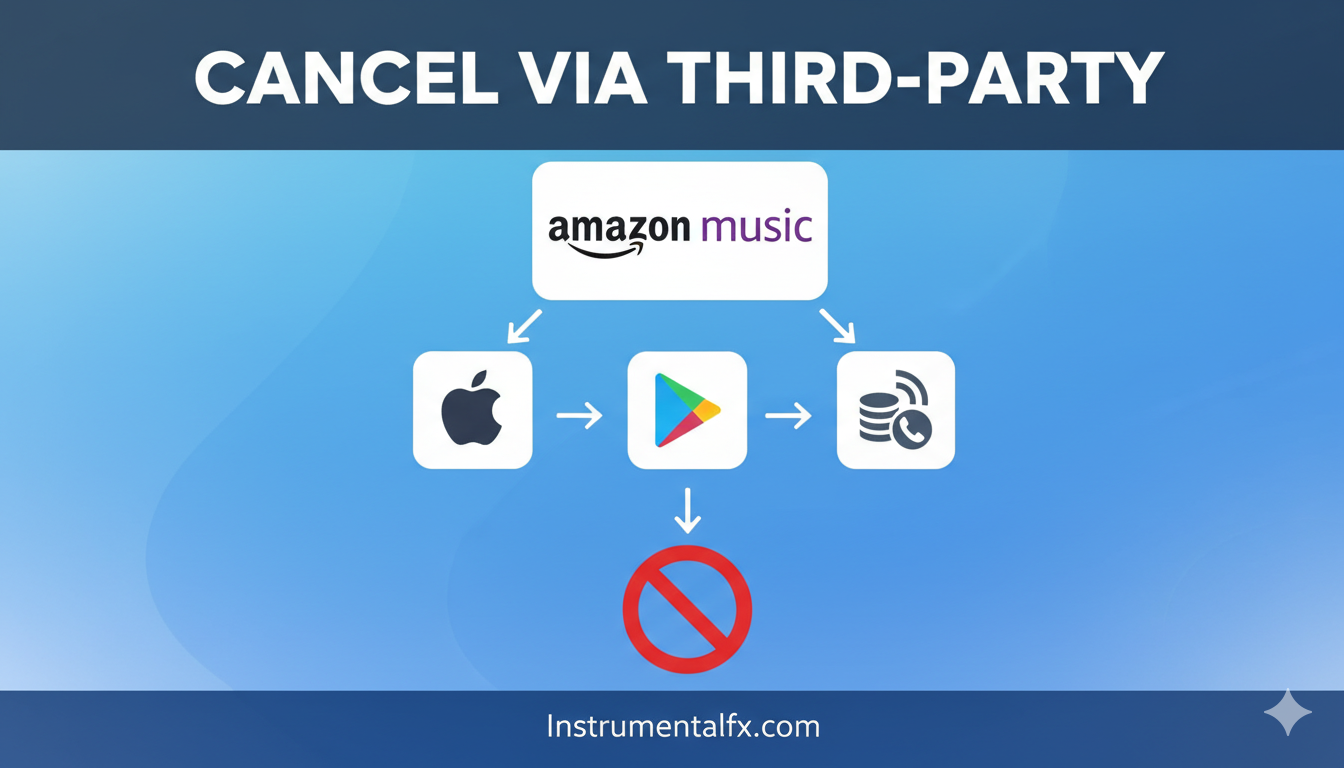
Some users subscribe through mobile carriers, Roku, or other third-party platforms.
Mobile Carrier Subscriptions (Verizon, AT&T, T-Mobile)
Contact your mobile service provider directly for carrier-billed subscriptions. Amazon cannot manage these subscriptions.
Call customer service or use your carrier’s mobile app for subscription management. Navigate to account settings and active services.
Request cancellation of Amazon Music through the carrier representative. Provide your account number and verification details.
Carriers process cancellation according to their billing cycles. You may need to wait until your next phone bill for changes.
Roku Channel Store Subscriptions
Log into your Roku account at roku.com using your web browser. Navigate to Manage Account settings.
Select Manage Your Subscriptions to view Roku Channel Store purchases. Find Amazon Music in the list.
Click Unsubscribe or Cancel Subscription next to Amazon Music. Confirm when Roku requests verification.
Roku handles billing and cancellation independently from Amazon. Direct all refund requests to Roku customer service.
General Third-Party Cancellation Tips
Check your bank statements or credit card bills to identify the billing source. This reveals which platform manages your subscription.
Contact the platform’s customer service if you’re uncertain about subscription origin. Have account details ready for verification.
Third-party subscriptions cannot be canceled through Amazon’s website or app. You must use the original subscription platform.
Using Alexa Voice Commands for Cancellation Information
Alexa provides limited assistance with Amazon Music cancellation processes.
You cannot cancel subscriptions directly through Alexa voice commands. Amazon intentionally prevents voice cancellation to avoid accidental terminations.
Ask “Alexa, how do I cancel Amazon Music Unlimited?” for basic guidance. Alexa recites general cancellation instructions.
Alexa directs you to visit Amazon.com or the Amazon Music app for actual cancellation. She provides website URLs and app navigation tips.
To prevent accidental voice subscriptions, disable voice purchasing in Alexa settings. Open the Alexa app and navigate to Settings.
Select Account Settings then Voice Purchasing and toggle the feature off. This prevents Alexa from making purchases or subscriptions.
Consider setting a voice code for purchases if you prefer keeping voice purchasing enabled. This adds a security layer requiring PIN confirmation.
What Happens After Canceling Your Amazon Music Subscription
Understanding post-cancellation effects helps you prepare for service changes.
Access Timeline
Your premium access continues through the end of your current billing period. If you paid for January and cancel on January 15th, you keep features until January 31st.
Amazon doesn’t provide partial refunds for unused days except in special circumstances. You’ve paid for the full month and retain those days.
The service automatically switches to Amazon Music Free after subscription expiration. You’ll still access music but with ads and limitations.
Content and Library Changes
Your created playlists remain saved in your Amazon Music account indefinitely. They don’t disappear when subscriptions end.
Liked songs, favorited albums, and followed artists persist in your library. You can view them but playback may be limited on free tier.
Downloaded songs for offline listening become grayed out and unplayable. Amazon removes download capabilities from expired subscriptions.
Podcasts remain accessible on the free tier in most regions. Amazon maintains podcast access as a free feature.
Account Status
Your Amazon Music account doesn’t get deleted after cancellation. It reverts to the free ad-supported version automatically.
Login credentials remain unchanged and you can sign in anytime. Your account history and preferences stay intact.
Resubscribing is simple and restores all previous playlists and libraries. Amazon makes returning seamless for former subscribers.
Audiobook and Podcast Implications
If you selected a free audiobook with Music Unlimited, access ends when subscription expires. The book returns to purchasable status.
Amazon Music Unlimited Family Plan audiobook selections also disappear for all family members. Each person loses their chosen book.
Podcast access typically continues on the free tier since most podcasts are ad-supported. Premium exclusive podcasts become unavailable.
Pausing Your Amazon Music Subscription Instead of Canceling
Amazon offers subscription pausing as an alternative to permanent cancellation.
Eligibility Requirements
Individual monthly Amazon Music Unlimited subscriptions usually qualify for pausing. This feature isn’t universal across all plan types.
Annual subscriptions typically cannot be paused due to upfront payment structures. The discount reflects long-term commitment.
Family Plan subscribers may not have pause options depending on region. Check your subscription management page for availability.
Student Plans often exclude pause features as they’re already discounted. Amazon limits pause availability strategically.
How to Pause Your Subscription
Follow the standard cancellation steps through your Amazon account. Navigate to Memberships & Subscriptions and select Amazon Music.
Look for the Pause Subscription option when Amazon asks about cancellation. This appears before final confirmation.
Select your pause duration if Amazon offers multiple options. Common choices include 1 month, 2 months, or 3 months.
Confirm the pause request and Amazon schedules it for your next billing date. You won’t be charged during the pause period.
The pause takes effect after your current billing cycle completes. Continue using premium features until that date arrives.
Resuming Paused Subscriptions
Paused subscriptions automatically resume after the selected period ends. Amazon charges your payment method on the scheduled restart date.
You can manually resume anytime during the pause through account settings. Navigate to Amazon Music settings and select Resume Subscription.
Amazon sends email reminders before automatic resumption occurs. This gives you time to cancel permanently if circumstances changed.
No features or playlists are lost during pause periods. Everything returns exactly as you left it upon resumption.
Troubleshooting Common Amazon Music Cancellation Problems
Several issues prevent successful cancellation, but solutions exist for most problems.
Can’t Find Cancel Button
Verify you’re logged into the correct Amazon account receiving charges. Multiple accounts create confusion about subscription location.
Check if you subscribed through a third-party like iTunes or Google Play. These require cancellation through their respective platforms.
Ensure you’re looking at Amazon Music Unlimited, not Amazon Music Prime. Prime Music cancels only by ending Prime membership.
Clear your browser cache and cookies if the website malfunctions. Sometimes outdated data prevents proper page loading.
Wrong Account Error
Review your bank or credit card statements to identify which email receives charges. This reveals the correct account.
Amazon allows multiple accounts with different email addresses. Subscription emails go to the account that purchased it.
Try all your known Amazon account credentials systematically. One likely has the active subscription.
Contact Amazon customer service if you absolutely cannot locate the correct account. Provide billing information for verification.
Family Plan Restrictions
Only the primary account holder can cancel Family Plan subscriptions. Family members lack cancellation permissions.
Ask the plan administrator to perform cancellation if you’re a family member. They must log into their account and cancel.
Family members cannot remove themselves from plans without administrator action. This prevents unauthorized plan disruptions.
If you’re the administrator and can’t cancel, verify no pending billing issues exist. Resolve any payment problems first.
Technical Glitches and App Errors
Update your Amazon Music app to the latest version available. Outdated apps often malfunction during account changes.
Try canceling through different methods – if the app fails, use the website. If desktop fails, try mobile browser.
Restart your device completely to clear temporary software issues. Sometimes a fresh start resolves mysterious errors.
Disable VPN connections if using them as they sometimes interfere with Amazon’s regional services. Connect directly to your ISP.
Contact Amazon technical support through chat or phone if problems persist. Representatives can manually process cancellations.
Billing Issues Preventing Cancellation
Update expired credit cards in your Amazon payment methods. Amazon won’t process cancellations with invalid payment information.
Resolve any declined payments or pending charges before attempting cancellation. Clear your account balance first.
Remove any payment holds or disputes with your bank. These flags can freeze account changes until resolved.
Contact Amazon billing support for assistance with payment problems. They can note your cancellation intent while fixing billing.
Getting Refunds for Amazon Music Subscriptions
Amazon’s refund policy is restrictive but some situations qualify for reimbursement.
Situations That May Qualify for Refunds
Accidental subscriptions through Alexa voice commands sometimes receive refunds. Contact support immediately after discovering the charge.
Billing errors where Amazon charged incorrect amounts or duplicate charges warrant refunds. Provide transaction documentation.
Account bans or service terminations by Amazon may result in partial refunds. Amazon determines eligibility case-by-case.
Technical issues preventing service access during paid periods might qualify. Document the problems and contact duration.
Free trial auto-renewals occasionally get refunded as goodwill gestures. Explain you forgot to cancel and caught it quickly.
How to Request Amazon Music Refunds
Contact Amazon customer service through chat, phone, or email support. Have your order number and account details ready.
Explain your refund request clearly and politely to the representative. Describe the circumstances and why you believe refund is warranted.
Provide evidence supporting your claim like screenshots, error messages, or billing statements. Documentation strengthens requests.
Be patient and understanding with representatives who have limited refund authority. Escalate to supervisors if initial attempts fail.
Follow up within 3-5 business days if you don’t receive confirmation. Amazon typically responds to refund requests quickly.
Amazon’s Standard Refund Limitations
No refunds for subscriber’s remorse or changing your mind after payment. Amazon considers these binding purchases.
Partial month refunds don’t exist for voluntary cancellations. You paid for the full billing period and retain access.
Annual subscriptions rarely receive prorated refunds even with early cancellation. The discount reflects full-term commitment.
Third-party subscriptions require refund requests through those platforms. Amazon cannot refund purchases made elsewhere.
Comparing Amazon Music to Alternative Streaming Services
Evaluating competitors helps determine if canceling Amazon Music makes sense.
Spotify Comparison
Spotify offers 100 million songs comparable to Amazon Music’s library. The platform excels at social features and playlist sharing.
Spotify’s free tier provides better functionality than Amazon Music Free. Limited skips and ads exist but full catalog access remains.
Premium costs $11.99 monthly, slightly more than Amazon Music for non-Prime members. Student and family plans offer competitive pricing.
Spotify’s algorithm creates better personalized playlists based on user feedback. Discover Weekly and Release Radar outperform Amazon’s recommendations.
Apple Music Comparison
Apple Music integrates seamlessly with iOS devices and HomePods. The ecosystem advantage benefits Apple users significantly.
Lossless audio comes standard with Apple Music at no extra cost. Amazon requires Unlimited subscription for HD quality.
Pricing matches Amazon Music at $10.99 for individuals and $16.99 for families. Student plans cost $5.99 monthly.
Apple Music Radio features live shows and exclusive content unavailable elsewhere. Beats 1 programming attracts dedicated listeners.
YouTube Music Comparison
YouTube Music bundles with YouTube Premium removing ads from both services. This dual benefit adds significant value.
The platform leverages YouTube’s extensive video content for music discovery. Live performances, covers, and remixes exceed competitor catalogs.
Pricing matches competitors at $10.99 individual and $16.99 family plans. YouTube Premium bundle costs $13.99 including ad-free videos.
Smart recommendations blend official releases with user-uploaded content. This creates unique discovery opportunities.
Tidal Comparison
Tidal focuses on audiophile quality with master-quality streaming options. Sound quality surpasses all mainstream competitors.
Artist compensation models favor creators more than other platforms. Subscribers support musicians directly.
Premium costs $10.99 but HiFi Plus with master quality runs $19.99. The price premium reflects quality focus.
Exclusive content from major artists like Jay-Z and Beyoncé attracts fans. Early releases and special editions incentivize subscriptions.
Deezer Comparison
Deezer provides strong international music catalogs with 90 million songs. Global content exceeds US-focused competitors.
Flow feature creates endless personalized radio based on listening habits. The algorithm adapts quickly to preferences.
Pricing at $11.99 matches industry standards for premium service. Family and student plans offer typical discounts.
Lyrics integration and song recognition features enhance user experience. Built-in tools reduce need for third-party apps.
Transferring Your Amazon Music Playlists to New Services
Don’t lose curated playlists when switching streaming platforms.
Using Playlist Transfer Services
Soundiiz supports transfers between 40+ streaming services including all major platforms. The interface is user-friendly for beginners.
TuneMyMusic offers free transfers for playlists under 500 songs. Premium unlocks unlimited transfers and automatic syncing.
FreeYourMusic specializes in comprehensive playlist migration with metadata preservation. One-time purchases avoid subscription fees.
Stamp focuses on playlist transfers with detailed song matching algorithms. The service provides reports of unmatched tracks.
Step-by-Step Transfer Process
Create an account with your chosen transfer service using email or social login. Most services offer free trials or limited free tiers.
Connect your Amazon Music account by authorizing the transfer service. Grant read-only permissions to access playlist data.
Select playlists you want to transfer to the new platform. Transfer services display all available playlists for selection.
Connect your destination streaming service account (Spotify, Apple Music, etc.). Authorize write permissions to create playlists there.
Initiate the transfer and wait for processing completion. Large playlists take several minutes while small ones transfer instantly.
Review the transfer report showing successfully matched and unmatched songs. Some tracks may be unavailable on the destination platform.
Manual Playlist Recreation
Write down song titles and artists for small playlists under 20 songs. Manual recreation is faster than setting up transfer services.
Take screenshots of your Amazon Music playlists for visual reference. This helps remember song order and album artwork.
Search each song on your new platform and add to a new playlist. Most streaming services have quick add-to-playlist buttons.
Check for cover versions or remixes if exact matches don’t exist. Sometimes different recordings satisfy the same musical need.
Handling Unmatched Songs
Transfer reports list songs unavailable on destination platforms. Review these carefully to identify alternatives.
Search manually for songs that failed automatic matching. Artist name spelling variations or regional availability cause matching failures.
Consider purchasing missing songs through iTunes or Amazon MP3 if they’re irreplaceable. Build a backup music library.
Create separate playlists for unmatched songs to revisit later. Catalogs change as licensing agreements update.
Preventing Unwanted Subscription Charges and Auto-Renewals
Proactive management prevents forgotten subscriptions and budget surprises.
Set Up Billing Alerts
Enable email notifications in your Amazon account for all charges. Immediate awareness prevents long-term forgotten subscriptions.
Use banking apps to set up alerts for specific merchant charges. Mobile notifications for Amazon charges provide instant visibility.
Calendar reminders for renewal dates give advance warning before charges occur. Set them for 7 days before billing.
Spreadsheets tracking all subscriptions with renewal dates maintain organization. Monthly reviews identify unused services.
Use Virtual Card Numbers
Services like Privacy.com create disposable virtual cards for subscriptions. Set spending limits or expiration dates for automatic cancellation.
Virtual cards protect your primary bank account from data breaches. Compromised subscription sites can’t access real card numbers.
Single-use cards prevent unwanted renewals without formal cancellation. The card expires after one charge fails.
Spending limits on virtual cards control maximum monthly subscription costs. Cards decline once limits are reached.
Regular Subscription Audits
Review all active subscriptions monthly through bank statements. Identify charges you don’t recognize immediately.
Log into subscription management pages quarterly for comprehensive reviews. Amazon, Apple, Google, and others centralize subscription controls.
Cancel or pause subscriptions you haven’t used in 30+ days. Reactivating later costs the same as maintaining unused service.
Ask family members about shared subscriptions to avoid duplicates. Multiple people might be paying for identical services.
Screenshot Cancellation Confirmations
Save screenshots of cancellation confirmation pages immediately. These prove your cancellation if billing disputes arise.
Forward cancellation emails to a dedicated folder for organization. Create “Subscription Management” or similar label in email.
Print physical copies of important cancellation confirmations for critical services. Paper backups prevent digital loss.
Note cancellation dates in your subscription tracking spreadsheet. Compare against bank statements to verify charges stopped.
Amazon Music Customer Service Contact Methods
Multiple support channels assist with cancellation and billing issues.
Live Chat Support
Access live chat through Amazon’s Help & Customer Service pages. Click “Contact Us” and select “Something Else.”
Choose “I need more help” to reach live representative options. Select chat as preferred contact method.
Chat provides fastest response times with typical wait under 5 minutes. Representatives handle real-time troubleshooting.
Save chat transcripts for documentation of issues and solutions. Most chat systems email transcripts automatically.
Phone Support
Call 1-888-280-4331 for Amazon Music-specific support in the United States. International numbers vary by region.
Phone support hours run 24/7 for most regions providing round-the-clock assistance. Wait times increase during peak hours.
Prepare account information before calling including email, order numbers, and billing details. This speeds verification.
Request supervisor escalation if initial representative cannot resolve issues. Supervisors have broader authority for exceptions.
Email Support
Submit email support tickets through your Amazon account’s Contact Us section. Select appropriate issue category.
Email responses typically arrive within 24 hours on weekdays. Weekend requests may take longer.
Email provides paper trail for complex issues requiring documentation. Attach screenshots and relevant information.
Follow up if no response arrives within 48 hours. Support tickets occasionally get lost or misfiled.
Social Media Support
Tweet @AmazonHelp on Twitter for public assistance with subscription issues. Public visibility often expedites responses.
Amazon’s Facebook page offers messenger support for account questions. Response times mirror email support speeds.
Avoid sharing sensitive account information in public social media posts. Use direct messages for personal details.
Social media escalation works well for unresolved issues through other channels. Public complaints receive priority attention.
Community Forums
Amazon Music Community Forums host peer-to-peer support discussions. Users share solutions and workarounds.
Search existing threads before posting new questions as common issues have established solutions. Forum search function saves time.
Amazon employees monitor forums and occasionally provide official responses. Their answers carry authoritative weight.
Community knowledge supplements official support for obscure issues. Long-time users offer practical experience.
Legal Considerations for Amazon Music Subscription Cancellations
Understanding your rights protects you during cancellation processes.
Consumer Protection Laws
Federal and state consumer protection laws govern subscription services. Companies must allow reasonable cancellation methods.
The Federal Trade Commission requires clear cancellation procedures for recurring charges. Amazon complies with these regulations.
Some states mandate specific cancellation timeframes or refund windows. Research your state’s subscription laws for additional protections.
California’s automatic renewal law provides stronger consumer rights than federal standards. California residents may have additional recourse.
Terms of Service Implications
Amazon Music Terms of Service outline cancellation rights and procedures. Review these before disputes.
Accepting terms creates binding agreement governing subscription relationship. Cancellation follows procedures outlined in terms.
Terms specify when access ends, refund policies, and data retention practices. Know your commitments before subscribing.
Amazon can modify terms with notice to subscribers. Email notifications announce changes requiring review.
Charge Dispute Rights
Credit card companies allow disputing unauthorized or fraudulent charges. Contact your card issuer for dispute procedures.
Disputed charges get investigated by card networks favoring consumer protections. Provide documentation supporting disputes.
Amazon may close accounts involved in chargebacks or disputes. Resolve issues directly with Amazon when possible.
Document all communication with Amazon regarding billing problems. Paper trails support dispute claims with card issuers.
Frequently Asked Questions
How do I cancel Amazon Music if I subscribed through my iPhone?
If you subscribed via the App Store, open iPhone Settings, tap your name, select Subscriptions, find Amazon Music, and tap Cancel Subscription to end the renewal. If you subscribed through Amazon’s website, use Safari to log into Amazon.com and cancel through Memberships & Subscriptions settings.
Will I lose my playlists when I cancel Amazon Music Unlimited?
No, your playlists, liked songs, and music library remain saved in your Amazon Music account even after canceling. You’ll regain full access to these collections if you resubscribe in the future, though playback may be limited on the free tier.
Can I get a refund if I cancel Amazon Music before the month ends?
Generally no, Amazon doesn’t provide refunds for partial months of unused service when you cancel voluntarily. You’ll retain premium access until your current billing period expires, ensuring you receive the full value of your payment.
How long does Amazon Music cancellation take to process?
Cancellation processes immediately upon confirmation, and you’ll receive email confirmation within 5-10 minutes. However, your premium subscription access continues until the end of your current billing cycle before reverting to the free tier.
Can I cancel Amazon Music without canceling Amazon Prime?
Yes, Amazon Music Unlimited is a completely separate subscription from Prime membership and can be canceled independently. Canceling Music Unlimited doesn’t affect your Prime benefits, and you’ll still access Amazon Music Prime included with membership.
What’s the difference between canceling and pausing Amazon Music?
Canceling permanently ends your subscription at the next billing date while pausing temporarily suspends billing and access for a set period. Paused subscriptions automatically resume after the selected duration, whereas canceled subscriptions require manual resubscription.
How do I cancel Amazon Music if I subscribed through Google Play?
Open the Google Play Store app, tap your profile icon, select Payments & Subscriptions, then Subscriptions, find Amazon Music, and tap Cancel Subscription. Google processes the cancellation immediately and sends confirmation to your Gmail address.
Can family members cancel Amazon Music Family Plan subscriptions?
No, only the primary account holder who created the Family Plan can cancel the subscription. Family members must contact the plan administrator to request cancellation as they lack permission to modify the subscription.
Why can’t I find the cancel button for Amazon Music?
You’re likely logged into the wrong Amazon account, subscribed through a third-party platform like iTunes or Google Play, or viewing Amazon Music Prime which requires canceling Prime membership. Verify your subscription source and login credentials.
What happens to downloaded Amazon Music songs after canceling?
Downloaded songs become grayed out and unplayable once your subscription expires as offline access is a premium feature. The songs remain visible in your library but won’t play until you resubscribe to Amazon Music Unlimited.
Conclusion
Knowing how to cancel Amazon Music empowers you to control your subscription expenses and streaming service choices effectively.
This comprehensive 2026 guide covered every cancellation method across iPhone, Android, and web platforms, ensuring you have the knowledge to end your subscription successfully regardless of device or subscription origin.
The cancellation process differs significantly based on where you originally subscribed, so identifying whether you purchased through Amazon directly, the App Store, Google Play, or a third-party provider is your crucial first step.
Each platform has distinct cancellation procedures, and attempting to cancel through the wrong method wastes time and potentially results in continued unwanted charges.
Remember that your music library, playlists, and account data remain intact after cancellation, making it easy to return if circumstances change.


