


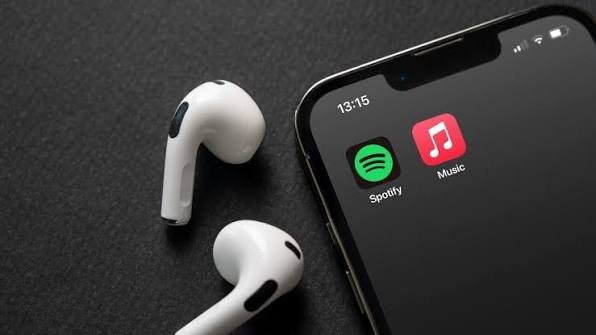
Choosing between Spotify and Apple Music, or wanting to try the other, often comes with one big worry: what happens to your playlists? Years of carefully built collections, liked songs, and saved albums can feel like a reason to stay put, even if the other service suits you better. The good news is that switching no longer means starting from scratch. This guide explains how to move your music between Spotify and Apple Music so your library comes with you.
Why Your Playlists No Longer Lock You In
For a long time, the effort of rebuilding a music library was the main thing keeping people on a service they had outgrown. Manually recreating playlists, one song at a time, across a library of hundreds or thousands of tracks is a genuinely daunting task, and few people have the patience for it. That friction kept many listeners locked in by inertia rather than genuine preference.
Transfer tools have changed this entirely. Today you can move your playlists, liked songs, saved albums, and followed artists between services automatically, in minutes rather than hours. This means your library is no longer a reason to stay. You can choose the service that genuinely suits you, and bring your music with you when you go.
How Playlist Transfer Works
Playlist transfer tools work by connecting to both your old and new streaming services and matching your music across them. You grant the tool access to each account, choose what you want to move, and it finds the equivalent tracks on the destination service and rebuilds your playlists there. Good tools use smart matching to find the right versions of songs and preserve playlist names and song order.
A dedicated app to Transfer playlists between services can move not just playlists but liked songs, saved albums, and followed artists, and it works across more than twenty streaming services, not only Spotify and Apple Music. It runs on phones and desktop, and you can even start a transfer on one device and continue on another. A typical library transfers in a matter of minutes.
What Transfers and What to Check
Most of your library transfers cleanly, but it is worth understanding the details. Playlists, liked songs, and albums generally move well, with the tool matching each track to its equivalent on the new service. Because the two services do not have identical catalogues, a small number of tracks occasionally cannot be matched, perhaps a specific version or a track not available on the destination service.
Good transfer tools handle this transparently, flagging any unmatched tracks so you can review and fix them manually rather than silently dropping them. This means you can check the results and ensure nothing important is lost. In practice, the vast majority of a typical library transfers accurately, and the handful of exceptions are easy to address.
Trying a Service Without Commitment
One of the best uses of playlist transfer is trying a new service without commitment. Because moving your library is quick and easy, you can take advantage of a free trial on the other service, bring your playlists over, and genuinely test it with your own music rather than an empty account. If you prefer it, you stay. If not, your original library is untouched.
This freedom is genuinely useful. It lets you make an informed choice based on experience rather than guesswork, and it removes the fear of being stuck. Whether you are drawn by Apple Music’s lossless audio or Spotify’s discovery features, you can try the other side properly, with your own music, before deciding.
Making the Switch Smoothly
To switch smoothly, start by transferring your library to the new service, then review the results to catch any unmatched tracks. Keep your old account active until you are confident everything has moved and you are happy with the new service. Some tools even offer syncing, keeping libraries mirrored, and backup features that snapshot your playlists, which adds an extra layer of security during a switch.
With this approach, moving between Spotify and Apple Music becomes a low-risk, low-effort process. Your music comes with you, your carefully built playlists survive, and you get to use the service that genuinely suits you best.
Frequently Asked Questions
Can I really transfer playlists between Spotify and Apple Music?
Yes. Dedicated transfer apps connect to both services and move your playlists, liked songs, saved albums, and followed artists automatically, matching tracks across the two catalogues in minutes.
Will everything transfer perfectly?
Most of your library transfers cleanly. Because the services do not have identical catalogues, a few tracks may not match, but good tools flag these so you can review and fix them rather than losing them silently.
How long does a transfer take?
Usually just minutes. A typical library of around a thousand tracks completes quickly, and you can start on one device and continue on another.
Can I try a service before fully switching?
Yes. Because transferring is quick, you can use a free trial, bring your library over, and test the new service with your own music. If you prefer your original, it remains untouched.
Does transfer work only between Spotify and Apple Music?
No. Good transfer apps support many services, more than twenty in some cases, so you can move between Spotify, Apple Music, YouTube Music, Tidal, Amazon Music, and others.
Final Thought
Your playlists should never trap you on a service you have outgrown. With modern transfer tools, moving your library between Spotify and Apple Music takes minutes, preserves your playlists and liked songs, and lets you try either service with your own music. Choose the service that genuinely suits you, transfer your library, and enjoy your music where you actually want to listen, without starting over.