


Videos are an important source of entertainment for many people across the globe. When a certain video is not playing, it can be frustrating. While there could be many reasons for a faulty video playback, you must understand the root cause to fix the issue. From the causes to the solutions, this article is a detailed guide to ensuring your video plays perfectly on your device.
Part 1. Why Videos Fail to Play: 4 Causes
Videos may refuse to play for several technical reasons, often leaving users confused and frustrated. Understanding the root causes helps you quickly identify the issue and choose the right fix instead of wasting time on trial and error.
Why Videos Fail to Play: 4 Causes
- Corrupted Video File: Videos not playing issue can be caused due to interrupted downloads, improper transfers, or sudden power failures. When this happens, media players are unable to read the file structure correctly, causing playback to fail.
- Unsupported Video Format: Some media players do not support all video formats or codecs. If the required codec is missing, the video may not open or play properly.
- Incomplete or Interrupted Download: Videos that are not fully downloaded often lack essential data required for playback. This results in freezing, buffering, or the video not playing at all.
- Outdated Media Player or System: An outdated media player or operating system may lack compatibility with newer video encoding standards. Keeping software updated is essential for smooth video playback.
Signs Your Video Needs Repair
- Video Won’t Open at All: The video file fails to open in any media player despite multiple attempts. This usually indicates severe file corruption or missing file data, needing a video repair software.
- Playback Freezes or Skips: The video starts playing but frequently freezes, lags, or skips frames. These interruptions often point to damaged file segments.
- Audio Plays but Video Is Blank: You may hear sound while the screen remains black or frozen. This is a common sign of video stream corruption within the file.
- Error Messages During Playback: Media players may display error messages such as “cannot play file” or “unsupported format.” These warnings often signal underlying video file damage that needs repair.
Part 2. How Video Repair Software Restores Corrupted Files
Video repair software is designed to fix damaged video files by rebuilding their structure and restoring missing data. Understanding how these tools work makes it easier to trust the repair process and choose the right solution.
- Analyzes File Structure: The software scans the corrupted video to detect broken headers, indexes, and metadata. This analysis helps identify exactly where the file has been damaged.
- Rebuilds Video Headers: Corrupted or missing headers are reconstructed using supported video format standards. Restoring headers allows media players to recognize and open the file again.
- Repairs Audio and Video Streams: The tool separates audio and video streams to fix inconsistencies or missing segments. This ensures both sound and visuals sync properly during playback.
- Uses Reference Files for Accuracy: Some repair tools use a healthy video recorded with the same device as a reference. This helps the software accurately reconstruct encoding details and file structure.
Repairit: The Best Solution to Fix Corrupted or Unplayable Videos
If you need a dependable MP4 repair tool that can handle all the damage scenarios mentioned above, a powerful option is worth considering. Repairit is designed to fix severely corrupted files regardless of what caused the issue, and its batch repair feature lets you add and repair multiple damaged files simultaneously with minimal effort.
Repairit also allows you to preview repaired videos before saving them, ensuring the results meet your expectations. It supports high-resolution formats, including 4K and 8K, without compromising video quality during the repair process. Powered by AI technology, the software delivers reliable repair results, while its Advanced Repair Mode thoroughly restores heavily damaged files and saves them securely to the local storage.
Key Features
- File Format Support: Repairit supports more than 20 video formats, including MP4, MOV, M2TS, RAW, HDR, and LOG.
- Device and Software Compatibility: The software repairs videos recorded on multiple devices such as Canon, Nikon, Sony, GoPro, DJI, and smartphones.
- Gyroscope Data Repair: This advanced feature restores corrupted gyroscope data in GoPro videos, stabilizes shaky footage, and optimizes video parameters.
A Guide to Repairing Unplayable Videos Using Repairit
After becoming familiar with what Repairit can do, the next step is learning how to use it effectively. The following step-by-step guide walks you through fixing videos using this video repair software:
Step 1. Launch the Video Repair Tool
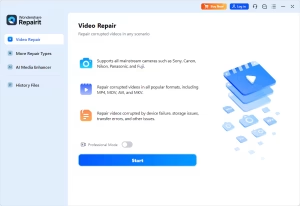
Begin by installing Repairit on your computer and opening the main dashboard. From the left-side menu, choose the “Video Repair” option and click the “Start” button displayed on the screen.

Step 2. Add Corrupted Videos
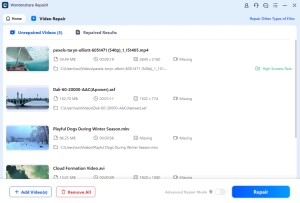
Browse your system to locate and import the damaged video files you want to fix. Once added, click the “Repair” button in the bottom-right corner to begin the repair process.

Step 3. Save the Restored Videos
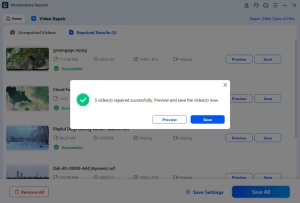
When the repair is complete, preview the videos if necessary and click “Save All” to store the repaired files on your device.

Part 3. Try 5 Workarounds When Your Video Refuses to Play
When a video is not playing, there are several simple workarounds you can try to resolve the issue quickly:
1. Restart The App or Browser
Closing and reopening the app or browser can refresh its settings and clear temporary glitches that prevent video playback.
2. Try Another Player or App
Using a different media player or app helps determine if the issue is with the original player or the video file itself.
3. Check File Format and Codecs
Ensure your video format is supported and the necessary codecs are installed to allow smooth playback without errors or interruptions.
4. Clear Cache and Update Software
Clearing cached data and updating apps or browsers removes corrupted temporary files and ensures compatibility with the latest video formats. Follow the guide below and learn how to clear the cache and update the software on VLC Media Player when your video is not playing:
Clear Cache
Step 1. First, enter the “Tools” menu from the top and select “Preferences” to access a new window.
Step 2. Locate and click the “Reset Preferences” button and click “OK” in the warning box to clear the cache.
Update Software
Instructions. On VLC Media Player’s main page, expand the “Help” menu and “Check for Updates”. If the following page shows any pending updates, get the recent version by following the onscreen navigation.
-
Check Storage and Hardware
Verify there’s enough storage and that your device hardware is functioning properly, as insufficient space or faulty components may affect playback. To see how you can check storage on your Windows PC, follow the guide below:
Instructions. Use the “Win + I” keys on the keyboard to open the “Settings” app. Now, access the “System” tab on the left and enter the “Storage” interface to check the device’s condition.
Part 4. Prevent Future Video Corruption: Simple Steps to Protect Your Files
These simple steps help ensure your video playback issues are prevented in the future and you do not need an MP4 repair tool:
- Safely Transfer Video Files: Always use proper transfer methods when moving videos between devices or storage media. Abrupt disconnections or unsafe removals can damage file structures.
- Avoid Interrupting Downloads and Recordings: Ensure downloads and recordings complete fully before closing apps or shutting down your device. Interruptions often lead to incomplete or corrupted video files.
- Keep Devices and Software Updated: Regular updates provide compatibility with the latest video formats and codecs. Updated systems also reduce the chances of playback errors.
- Use Reliable Storage Devices: Store videos on trusted hard drives, memory cards, or cloud services with good health status. Faulty or low-quality storage devices increase the risk of file corruption.
Conclusion
Conclusively, having an unplayable video on your device frustrates people. This article suggests the top causes when “videos not playing” and the signs of a corrupted film. You can try many local devices and media player methods to make the video run. If these techniques fail, use Repairit to fix the root issues with your file. This tool offers an Advanced Repair Mode to cater to extensive film file damages.