


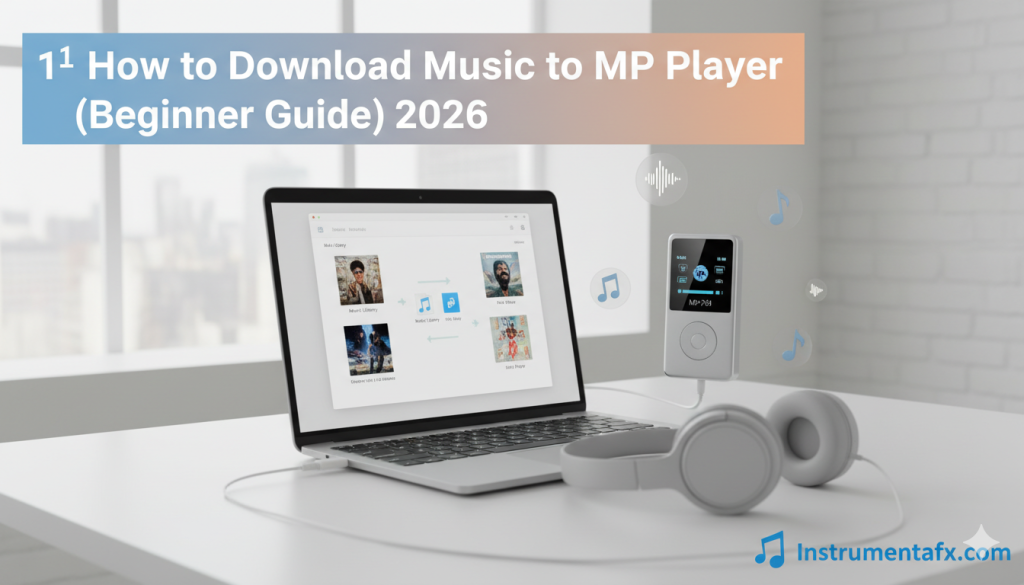
How to download music to MP3 player remains one of the most searched questions by music enthusiasts who prefer offline listening in 2026.
Despite the streaming era, MP3 players continue offering unmatched convenience for enjoying your favorite songs without internet dependency, subscription fees, or battery-draining apps.
Whether you own a classic SanDisk Clip, modern HIFI Walker device, or budget-friendly MP3 player, transferring music is surprisingly straightforward.
This comprehensive beginner guide walks you through every method of downloading and transferring music to your MP3 player, covering computer transfers, direct downloads, troubleshooting common issues, and legal music sources that won’t break your budget.
Understanding Your MP3 Player
Before learning how to download music to MP3 player devices, you need to understand what type of player you own. Different models require slightly different approaches for music transfer.
Most MP3 players fall into three main categories: basic flash memory players, touchscreen DAPs (Digital Audio Players), and smartphone-based Android players. Each type has unique characteristics affecting how you transfer music.
Basic flash memory players like SanDisk Clip series are the simplest. They connect to computers via USB and appear as removable storage drives. These devices typically support MP3, WMA, and sometimes AAC audio formats.
Touchscreen DAPs like HIFI Walker models offer advanced features. They support high-resolution audio formats including FLAC, WAV, DSD, and MQA. These players often have larger storage capacity and expandable memory via microSD cards.
Android-based MP3 players function like simplified smartphones. They run Android operating systems and can install apps directly. These devices offer most flexibility but require different transfer methods than basic players.
Understanding your player’s specifications is crucial. Check your user manual or manufacturer website for supported audio formats, storage capacity, and connection requirements. This information determines which transfer method works best.
What You Need Before Starting


Successfully learning how to download music to MP3 player requires gathering essential items first. Having everything ready streamlines the entire process and prevents frustrating interruptions.
You need your MP3 player fully charged or connected to power. Dead batteries during file transfers can corrupt data and damage your device. Always ensure adequate power before starting any transfer.
A proper USB data cable is absolutely critical. Many people fail because they use charging-only cables that don’t transfer data. The cable that came with your player usually works best.
Check that your cable supports data transfer, not just charging. Data cables have four internal wires while charge-only cables contain only two. If uncertain, try a different cable or purchase one specifically labeled for data transfer.
Your computer must be running properly with available USB ports. Windows PCs, Macs, and Linux systems all work, though steps vary slightly. Ensure your operating system is updated for best compatibility.
Music files need to be in compatible formats. MP3 is universally supported, while FLAC, WAV, AAC, and WMA support varies by device. Check your player’s manual for supported formats to avoid compatibility issues.
Optional but helpful items include microSD card readers if your player supports expandable storage. High-capacity microSD cards let you store massive music libraries. Some HIFI Walker models support up to 512GB or even 2TB cards.
Method 1: Transfer Music from Computer via USB
The most common method of how to download music to MP3 player involves direct USB connection to your computer. This drag-and-drop approach works with most modern MP3 players and requires no special software.
Step 1: Connect Your MP3 Player
Connect your MP3 player to your computer using the USB data cable. Plug the larger USB-A end into your computer’s USB port and the smaller end (usually micro-USB or USB-C) into your player.
Turn on your MP3 player after connecting. Some devices need to be powered on before computers recognize them. Wait a few seconds for your computer to detect the new device.
Windows computers usually display an AutoPlay dialog box. You’ll see options like “Open device to view files using Windows Explorer.” Select this option to access your player’s storage directly.
Mac users will see the MP3 player appear on the desktop as a removable drive. It might be named after your device model or simply appear as “NO NAME” or “Removable Disk.” Double-click to open it.
Some MP3 players require selecting a specific USB mode. Check your player’s screen for options like “File Transfer,” “USB Storage,” or “Mass Storage.” Select the appropriate mode to enable file access.
Step 2: Locate Your Music Files
Open File Explorer on Windows by pressing Windows Key + E. Navigate to the folder containing your music files. Common locations include Music folder, Downloads, or custom folders where you store audio files.
Mac users should open Finder and navigate to their music location. Check Music folder, Downloads, or wherever you’ve saved your audio files. You can also use Spotlight search to quickly find specific songs.
Organize your music files before transferring for easier management. Create folders by artist, album, or genre. This organization carries over to your MP3 player, making navigation much easier.
Select the music files you want to transfer. Hold Ctrl (Windows) or Cmd (Mac) while clicking individual files to select multiple songs. Press Ctrl+A or Cmd+A to select all files in a folder.
Step 3: Open Your MP3 Player’s Music Folder
In the window showing your MP3 player’s contents, look for a folder named “Music.” This dedicated folder is where most players expect audio files to be stored for proper recognition.
Double-click the Music folder to open it. If no Music folder exists, you can create one by right-clicking and selecting “New Folder,” then naming it “Music.” Some players work without this folder but having it ensures better organization.
Some devices have multiple folders like “Music,” “Audiobooks,” and “Podcasts.” Place your files in the appropriate folder. Most song files belong in the Music folder for correct categorization.
Keep this window open alongside your computer’s music folder. Having both windows visible side-by-side makes the transfer process much simpler and reduces errors.
Step 4: Transfer Music Files
Drag selected music files from your computer’s folder to your MP3 player’s Music folder. Click and hold the files, drag them to the MP3 player window, and release to start copying.
Alternatively, use copy and paste method. Right-click selected files, choose “Copy,” then right-click in the MP3 player’s Music folder and select “Paste.” This method works identically on both Windows and Mac.
A progress window appears showing transfer status. Large files or many songs take longer to transfer. Don’t disconnect your player during this process or you risk corrupting files.
Wait until the transfer completes fully. Windows shows “Transfer Complete” or the progress window closes. Mac users should wait for the copying dialog to disappear completely.
Step 5: Safely Eject Your MP3 Player
Never simply unplug your MP3 player immediately after transfer. Unsafe removal can corrupt data, damage your device’s file system, and cause files to become unreadable.
Windows users should click the “Safely Remove Hardware” icon in the system tray (bottom-right corner near the clock). It looks like a USB drive with a green checkmark. Click it and select your MP3 player from the list.
Wait for the confirmation message stating “Safe to Remove Hardware.” Only after seeing this message should you physically disconnect the USB cable from your computer and player.
Mac users should drag the MP3 player icon from the desktop to the Trash. The Trash icon changes to an Eject symbol when you drag the device over it. Release to eject the player safely.
After ejecting, disconnect the USB cable from both your computer and MP3 player. Turn on your player and navigate to the Music section to verify your transferred songs appear correctly.
Method 2: Using MicroSD Card Transfer
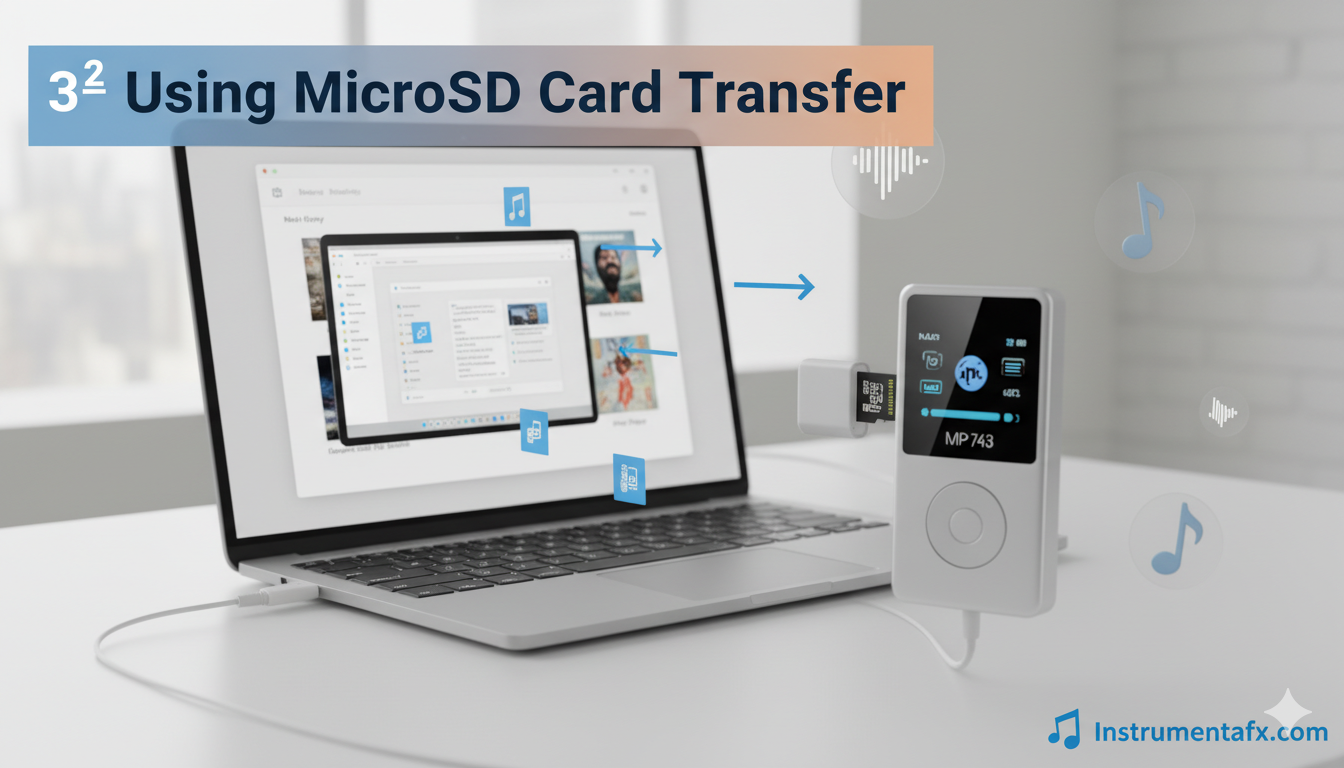
Learning how to download music to MP3 player via microSD card offers advantages over direct USB connection. This method is faster for large libraries and lets you swap cards to instantly change your entire music collection.
Remove and Prepare MicroSD Card
Turn off your MP3 player completely before removing the microSD card. Removing cards while devices are powered on can corrupt data and damage both the card and player.
Locate the microSD card slot on your player. It’s usually on the side or bottom, often covered by a small rubber flap or plastic cover. Gently push the card inward until it clicks and springs outward.
Carefully remove the microSD card and handle it by the edges. Avoid touching the gold contact points as oils from your fingers can interfere with connectivity and cause read errors.
Insert Card into Computer
Insert the microSD card into your computer’s SD card slot if available. Full-size SD card slots require an SD card adapter. Most microSD cards come with these adapters included in the package.
If your computer lacks an SD card slot, use a USB SD card reader. These inexpensive accessories plug into USB ports and accept microSD cards directly or via adapters. They’re available at most electronics stores.
Your computer should recognize the card within seconds. It appears as a removable drive with a drive letter on Windows or an icon on Mac desktop. Open it like any other drive.
Create Organized Folders
Create a logical folder structure on your microSD card for better organization. Make folders for different artists, albums, genres, or playlists based on how you prefer accessing your music.
For example, create folders like “Artist Name > Album Name” or “Genre > Artist Name.” This hierarchy makes finding specific songs much easier on your MP3 player’s screen.
Good organization prevents the frustration of scrolling through hundreds of unsorted files. Take time to structure your library properly now and you’ll appreciate it every time you use your player.
Copy Music Files
Navigate to your computer’s music folder and select files you want to transfer. Copy them as described in Method 1, then paste them into the appropriate folders on your microSD card.
Large music libraries transfer faster to microSD cards than via USB connection. Modern high-speed microSD cards transfer data at 90MB/s or faster, significantly reducing wait times for massive collections.
FLAC and high-resolution audio files are particularly large. A 4-minute FLAC song can be 40-50MB compared to 4-5MB for MP3. MicroSD cards handle these large transfers more efficiently than older USB 2.0 connections.
Safely Eject and Reinstall
After copying completes, safely eject the microSD card using the same process as ejecting your MP3 player. Wait for confirmation before removing the card from your computer or card reader.
Reinsert the microSD card into your MP3 player. Push it gently into the slot until it clicks and locks in place. Ensure it’s fully seated to prevent connection issues.
Power on your MP3 player and navigate to Settings or Storage to verify it recognizes the microSD card. Your player should display the card’s capacity and available space accurately.
Method 3: Download Music Directly to Android MP3 Players
Android-based MP3 players like HIFI Walker G7 offer unique advantages. Learning how to download music to MP3 player devices running Android opens additional possibilities including direct downloads and streaming app installations.
Install Music Downloading Apps
Android MP3 players can install apps from Google Play Store or APK files. Music downloading apps let you acquire songs directly on the device without needing a computer connection.
Open Google Play Store on your Android MP3 player. Search for legitimate music download apps like “Free Music Download,” “Music Downloader,” or specific artist apps that offer free downloads.
Download and install your chosen app following on-screen instructions. Grant necessary permissions for the app to access storage and download files. These permissions let the app save music to your device.
Download Music Directly
Launch the music download app and search for songs you want. Most apps provide search functionality by song title, artist name, or album. Browse results and preview songs before downloading.
Tap the download button next to your desired song. The app downloads the file directly to your MP3 player’s storage. Downloads typically save to a folder like “Music,” “Downloads,” or a custom folder within the app.
Multiple downloads can proceed simultaneously on most apps. Queue up several songs and let them download in the background while you continue browsing for more music.
Install Streaming Apps
Android MP3 players support popular streaming apps like Spotify, YouTube Music, Apple Music, and Tidal. While these require internet connectivity, they expand your music access tremendously.
Download streaming apps from Google Play Store. Sign in with your existing accounts to access your playlists, saved songs, and personalized recommendations immediately on your MP3 player.
Premium subscriptions to these services often allow offline downloads. Download playlists or albums while connected to WiFi, then enjoy them offline anywhere without consuming data or requiring internet access.
Organize Downloaded Files
Use a file manager app to organize music downloaded directly to your Android MP3 player. Move files from Downloads folder to Music folder for better organization and easier access.
Create playlists within your music player app. Most Android players include default music apps with playlist creation features. Organize songs by mood, genre, or activity for quick access.
Finding Legal Free Music to Download
Learning how to download music to MP3 player is only half the process. Finding legal, free music sources ensures you’re not violating copyright laws while building your music collection.
Free Music Archive
Free Music Archive offers one of the largest collections of legal, free music. This platform was created by an independent radio station and curates high-quality music from independent artists worldwide.
All music on Free Music Archive is legally downloadable for personal use. Artists voluntarily share their work, and songs use Creative Commons licensing. You can download without worrying about copyright infringement.
The site organizes music by genres including indie, electronic, experimental, classical, and world music. Browse curated collections or search for specific artists. Each song clearly displays its license and usage terms.
Jamendo Music
Jamendo hosts over 500,000 tracks from independent artists across all genres. It’s completely free for personal listening and downloading. Artists upload their music hoping to gain exposure and build fan bases.
Create a free Jamendo account to download songs in MP3 format. The platform offers high-quality audio files suitable for any MP3 player. You can browse by genre, mood, or popularity.
Jamendo clearly labels licensing for each track. Most are free for personal use. If you plan commercial use like in YouTube videos, Jamendo Licensing offers paid options supporting artists financially.
Bandcamp
Bandcamp supports independent artists by letting them sell music directly to fans. Many artists offer free downloads or “name your price” options where you can enter $0 to download free.
Search Bandcamp for your favorite genres or discover new artists through their recommendation engine. When you find free music, click “Buy Digital Album” or “Buy Digital Track” and enter 0 in the price field.
Free downloads from Bandcamp are legal and ethical. Artists choose to offer them as promotional tools. You’re supporting artists by sharing their music and attending shows even when downloading for free.
SoundCloud
SoundCloud hosts millions of songs, and many artists enable free downloads for their tracks. Look for the “Download” button below songs. If present, downloads are artist-authorized and completely legal.
SoundCloud is particularly good for discovering emerging artists, remixes, and indie music. The platform serves as a promotional tool where artists share work hoping to build audiences and gain recognition.
Create a free SoundCloud account to like and repost tracks, supporting artists whose music you enjoy. These interactions help artists gain visibility and grow their fan bases without costing you anything.
YouTube Audio Library
Content creators know YouTube Audio Library as a source for royalty-free music. However, anyone can access and download these tracks for personal use absolutely free.
YouTube Audio Library offers high-quality songs across numerous genres. All tracks are copyright-free for personal projects. Download MP3 files directly from the site after logging into your Google account.
The library includes music from professional composers and artists who’ve licensed their work to YouTube. Quality is consistently high, and new tracks are added regularly, providing fresh content frequently.
Converting Audio File Formats
Understanding how to download music to MP3 player includes knowing about audio format conversion. Your player might not support all audio file types, requiring conversion before transfer.
Identify Supported Formats
Check your MP3 player’s manual or specifications to see which audio formats it supports. Most support MP3 universally, but FLAC, WAV, AAC, WMA, and OGG support varies by device.
Basic players typically support only MP3 and sometimes WMA. Mid-range players add AAC support. High-end audiophile players like HIFI Walker models support virtually all formats including DSD and MQA.
If you have music files your player doesn’t support, you need to convert them. Don’t delete original files until you’ve confirmed conversions work properly on your device.
Using Free Conversion Software
VLC Media Player is completely free and converts between virtually all audio formats. Download it from videolan.org if you don’t already have it installed on your computer.
To convert files in VLC, go to Media > Convert/Save. Add your audio files, select desired output format (typically MP3), choose destination folder, and click Start. VLC handles the conversion automatically.
Audacity is another excellent free option for audio conversion. It’s more powerful than VLC for audio editing but slightly more complex. Download from audacityteam.org and follow their straightforward conversion tutorials.
Online Conversion Tools
Online converters like CloudConvert, Online-Convert, and FreeConvert work directly in web browsers without software installation. Upload your audio file, select output format, and download the converted result.
Online converters are convenient but have file size limits on free tiers. They’re perfect for converting a few songs but impractical for converting entire music libraries at once.
Privacy-conscious users should avoid uploading personal or sensitive audio to online services. These files pass through third-party servers. For complete privacy, use offline software like VLC or Audacity.
Maintaining Quality During Conversion
When converting lossless formats like FLAC to MP3, some quality loss occurs. MP3 uses lossy compression that removes audio data. Choose higher bitrates (256kbps or 320kbps) to minimize quality loss.
Never convert from one lossy format to another (like MP3 to AAC). This “transcoding” compounds quality loss and results in noticeably worse audio. Always convert from lossless sources when possible.
For audiophile players supporting FLAC, keep your music in lossless formats. The superior sound quality is worth the larger file sizes if your player has adequate storage capacity.
Organizing Your Music Library
Mastering how to download music to MP3 player includes proper organization. Well-organized libraries make finding and enjoying your music exponentially more pleasant and efficient.
Create Logical Folder Structure
Organize music by artist, then album within each artist folder. This hierarchy mirrors how most music players navigate and display content. It makes finding specific albums incredibly easy.
Alternative structures include organizing by genre first, then artist, then album. Choose whatever system makes most sense for how you listen. Consistency matters more than the specific structure chosen.
Use clear, descriptive folder names. Avoid special characters that might cause compatibility issues on some players. Stick to letters, numbers, spaces, and hyphens for maximum compatibility.
Tag Your Music Files Properly
ID3 tags are metadata embedded in audio files containing information like artist name, album title, track number, and genre. Properly tagged files display correctly on your MP3 player’s screen.
Use free software like Mp3tag (for Windows) or Kid3 (for Mac and Linux) to edit ID3 tags. These programs let you batch edit multiple files simultaneously, saving enormous amounts of time.
Correct tagging ensures your player sorts songs properly and displays accurate information. Take time to fix tags for unrecognized or incorrectly labeled files in your library.
Manage Album Art
Many MP3 players display album artwork on their screens. Embedded album art makes browsing your library more visually appealing and helps you quickly identify albums.
Mp3tag and similar programs can automatically download album art from online databases. Alternatively, manually add cover images by copying JPG files into album folders or embedding them in audio file tags.
Keep album art file sizes reasonable (500×500 pixels maximum). Extremely large images increase file sizes unnecessarily and can slow down some players when loading artwork.
Create Playlists
Playlists collect your favorite songs into convenient groups. Create workout playlists, driving playlists, relaxation playlists, or any other collections matching your listening moods and activities.
Most computers and MP3 players support M3U or PLS playlist formats. Create playlists in Windows Media Player, iTunes, VLC, or directly on your MP3 player if it has playlist creation features.
Sync playlists to your player along with music files. Well-crafted playlists eliminate the need to constantly search for individual songs and make your MP3 player experience significantly more enjoyable.
Troubleshooting Common Issues
Even when you know how to download music to MP3 player correctly, problems occasionally arise. Understanding common issues and their solutions prevents frustration and keeps your music flowing.
Computer Doesn’t Recognize MP3 Player
If your computer doesn’t detect your connected MP3 player, first try a different USB cable. Charge-only cables are the most common culprit. Use the original cable that came with your device.
Try different USB ports on your computer. USB 3.0 ports (usually blue) sometimes have compatibility issues with older MP3 players. Try USB 2.0 ports (usually black or white) instead.
Check if your MP3 player has USB mode settings. Navigate through settings menus and select “USB Storage,” “Mass Storage,” or “File Transfer” mode. Some players default to charging mode requiring manual switching.
Restart both your computer and MP3 player. This simple solution often resolves connection issues by refreshing USB controllers and device recognition systems.
Music Files Won’t Play on MP3 Player
Non-playing files usually indicate format incompatibility. Verify the audio format matches your player’s supported formats list. Convert unsupported files using VLC Media Player or similar free software.
DRM-protected files from streaming services won’t play on standard MP3 players. Spotify, Apple Music, and similar services encrypt their files. You must use official apps or purchase DRM-free music from iTunes or Amazon.
Corrupted files downloaded from suspicious websites may not play. Delete suspicious files and download music from reputable legal sources only. Scan downloads with antivirus software for added security.
Check that files fully transferred before disconnecting your player. Partial file transfers create incomplete files that won’t play. Always wait for transfer completion and safely eject your device.
Insufficient Storage Space
If your player displays “Insufficient Storage” errors, delete old music you no longer listen to. Sort files by date added and remove oldest tracks to free space for new additions.
Consider purchasing a larger microSD card if your player supports expandable storage. Modern cards offer massive capacities. A 256GB card holds approximately 40,000 MP3 songs or 5,000 FLAC tracks.
Compress your music library by converting FLAC files to high-quality MP3 (320kbps). This sacrifices some audio quality but dramatically reduces file sizes, allowing more songs in limited storage space.
Transfer Speed Is Extremely Slow
Slow transfers often result from USB 2.0 connections, which max out around 35MB/s in real-world conditions. USB 3.0 connections are up to 10 times faster if both your computer and player support it.
Using microSD card readers instead of direct USB connection can significantly speed transfers. High-speed microSD cards with UHS-I or UHS-II ratings transfer data much faster than USB 2.0.
Close unnecessary programs during file transfer. Antivirus software scanning files as they transfer can dramatically slow the process. Temporarily disable real-time protection during large transfers.
Transfer files during computer idle time. If your computer is running intensive programs, transfer speeds suffer. Close other applications and let the transfer complete faster with full system resources.
Best Practices for MP3 Player Music Management
Understanding how to download music to MP3 player perfectly requires following best practices that protect your device and ensure optimal performance throughout its lifespan.
Regular Backups
Always maintain backups of your music library on your computer or external hard drive. MP3 players can fail, get lost, or suffer corruption. Backups ensure you never lose your carefully curated collection.
Use cloud storage services like Google Drive, Dropbox, or OneDrive for additional backup security. Cloud backups protect against simultaneous computer and device failure, providing ultimate peace of mind.
Schedule regular backup sessions weekly or monthly depending on how frequently you add new music. Consistency prevents devastating losses if disaster strikes unexpectedly.
Keep Firmware Updated
MP3 player manufacturers release firmware updates fixing bugs, improving battery life, and adding features. Check your manufacturer’s website quarterly for updates to keep your device performing optimally.
Follow update instructions carefully. Improper firmware updates can brick devices, rendering them unusable. Never disconnect power or USB connections during firmware update processes.
Battery Care
Lithium batteries in MP3 players last longer with proper care. Avoid completely draining batteries regularly. Charge when battery level reaches 20-30% rather than waiting for complete depletion.
Don’t leave players plugged in charging continuously for days. Overcharging stresses batteries and reduces their lifespan. Unplug after fully charged or use smart chargers that automatically stop charging.
Store MP3 players with approximately 50% battery charge if not using them for extended periods. Completely drained or fully charged storage both degrade battery health over time.
Protect Your Device
Use protective cases or pouches to prevent scratches and drops. MP3 players are portable devices that face rough treatment. Physical protection extends their usable life significantly.
Keep players away from extreme temperatures. Don’t leave them in hot cars or extreme cold. Temperature extremes damage batteries and can crack screens on touchscreen models.
Clean your MP3 player regularly with soft, lint-free cloths. Avoid harsh chemicals that might damage screens or plastic housings. Gentle cleaning maintains appearance and prevents debris buildup in ports.
Legal Considerations When Downloading Music
Knowing how to download music to MP3 player legally is just as important as the technical process. Understanding copyright law protects you from legal troubles and supports artists who create music.
Understanding Copyright Law
Copyright protects music creators’ intellectual property rights. Downloading copyrighted music without permission or payment violates law and can result in legal consequences including fines and lawsuits.
Music enters public domain after copyright expires, typically 70 years after the creator’s death in most countries. Public domain music can be freely downloaded and used without restrictions or permissions.
Creative Commons licenses allow artists to specify how others can use their work. Some Creative Commons licenses permit free personal use while restricting commercial use. Always check the specific license terms.
Avoiding Illegal Download Sites
Torrent sites, shady MP3 download sites, and YouTube rippers often distribute copyrighted music illegally. Using these sites exposes you to legal risk and often infects computers with malware and viruses.
Signs of illegal sites include no artist payment systems, too-good-to-be-true music catalogs, excessive pop-up ads, and lack of clear licensing information. Legitimate sites clearly explain their legal status.
Stick to the legal free music sources mentioned earlier in this guide. Bandcamp, SoundCloud, Jamendo, Free Music Archive, and similar platforms offer legal downloads while supporting artists fairly.
Supporting Artists Fairly
Even when downloading free legal music, find ways to support artists whose work you enjoy. Attend concerts, buy merchandise, share their music on social media, or purchase albums if you can afford it.
Streaming services pay artists fractions of cents per stream. Purchasing albums directly from artists or Bandcamp ensures they receive significantly more compensation for their creative work.
Consider it ethical responsibility to support creators. Music enriches our lives immeasurably. Fair compensation ensures artists can continue creating the music we love.
Advanced Tips for Audiophiles
For serious music enthusiasts learning how to download music to MP3 player devices, these advanced tips maximize audio quality and optimize your listening experience for critical listening sessions.
High-Resolution Audio Formats
High-end MP3 players support lossless formats like FLAC (Free Lossless Audio Codec). FLAC files preserve 100% of original recording quality without compression artifacts present in MP3 files.
WAV files are uncompressed and provide the ultimate audio quality but consume enormous storage space. A 4-minute WAV file can be 40-50MB compared to 4-5MB for equivalent MP3.
DSD (Direct Stream Digital) and MQA (Master Quality Authenticated) formats offer even higher quality for serious audiophiles. Only premium MP3 players like HIFI Walker H20 Pro support these advanced formats.
Finding High-Resolution Music
HDtracks, Qobuz, and Bandcamp offer high-resolution music purchases. These services sell FLAC and WAV files in resolutions up to 24-bit/192kHz, far exceeding CD quality’s 16-bit/44.1kHz.
Many artists on Bandcamp offer lossless downloads even for “name your price” albums. This provides incredible value for audiophiles who want maximum quality without breaking their budgets.
Archive.org’s Live Music Archive contains thousands of live concert recordings in lossless formats. Many legendary performances are available completely free and legally for downloading and enjoying.
Optimal Encoding Settings
When you must convert to MP3, use VBR (Variable Bit Rate) encoding at V0 or V2 settings. VBR allocates more bits to complex audio passages, maintaining quality while reducing file sizes.
CBR (Constant Bit Rate) at 320kbps provides excellent quality but larger file sizes than VBR. It’s simpler and universally compatible, making it the safe choice for maximum compatibility.
Avoid encoding below 192kbps for music you care about. Quality degradation becomes noticeable at lower bitrates, especially with good headphones or speakers. Storage is cheap; quality is irreplaceable.
Using Equalization
Many MP3 players include equalizer (EQ) settings customizing sound to your preferences or compensating for headphone characteristics. Experiment with EQ presets to find what sounds best to your ears.
Custom EQ lets you adjust specific frequency bands. Boost bass for more thump, reduce treble harshness, or enhance midrange for clearer vocals. Small adjustments make significant differences.
Save different EQ presets for different music genres. Classical music benefits from different EQ than electronic music. Quick preset switching lets you optimize each listening session effortlessly.
Frequently Asked Questions (FAQs)
How to download music to MP3 player from my computer?
Connect your MP3 player via USB cable, open it as a drive in File Explorer, navigate to the Music folder, then drag and drop your music files. Always safely eject before disconnecting to prevent data corruption.
Can I download Spotify music to my MP3 player?
Standard MP3 players cannot play Spotify music due to DRM protection. Only Android-based MP3 players can install the Spotify app for offline listening with Premium subscriptions.
What audio formats do MP3 players support?
Most MP3 players support MP3 and WMA formats. Mid-range players add AAC support, while high-end models support FLAC, WAV, DSD, and other lossless formats. Check your specific model’s specifications.
How do I fix my computer not recognizing my MP3 player?
Try using a different USB cable (ensure it’s a data cable, not charge-only), use different USB ports, restart both devices, and check if your player needs USB mode changed to “File Transfer” in settings.
Where can I legally download free music for my MP3 player?
Jamendo, Free Music Archive, Bandcamp, SoundCloud, and YouTube Audio Library offer legal free music downloads. These platforms host music from independent artists who’ve authorized free distribution for personal use.
How much music can my MP3 player hold?
This depends on storage capacity and file format. A 16GB player holds about 4,000 MP3 songs or 400 FLAC songs. Use microSD cards to dramatically expand capacity if your player supports them.
Why won’t music files play on my MP3 player?
Files might be in unsupported formats, corrupted during transfer, or DRM-protected from streaming services. Convert files to MP3 format, retransfer them properly, or ensure they’re DRM-free music files.
How long does it take to transfer music to MP3 player?
Transfer speed depends on connection type and file sizes. USB 2.0 transfers 100 songs (500MB) in about 2-3 minutes. USB 3.0 is much faster. Large FLAC libraries take longer than MP3 collections.
Can I use iTunes to transfer music to my MP3 player?
iTunes works with iPods primarily, but you can transfer DRM-free music to other MP3 players. Export songs from iTunes library, then manually drag files to your player’s Music folder via File Explorer.
How do I organize music on my MP3 player?
Create folder structures by artist and album, use tagging software to add correct metadata, embed album artwork, and create playlists. Proper organization makes navigating your music library significantly easier.
Conclusion
Learning how to download music to MP3 player devices empowers you to enjoy your favorite songs anywhere without internet dependency or subscription fees.
This comprehensive 2026 guide covered every essential aspect from understanding your device and gathering necessary equipment to transferring music via USB or microSD card methods.
Whether you own a basic SanDisk Clip or advanced HIFI Walker DAP, these techniques work universally across all MP3 player types and models.
We explored finding legal free music from Jamendo, Free Music Archive, Bandcamp, SoundCloud, and YouTube Audio Library, ensuring your downloads respect copyright law while supporting independent artists.
You learned about converting audio formats using free tools like VLC Media Player and Audacity, organizing your library with proper folder structures and ID3 tags, and troubleshooting common issues from connection problems to format incompatibility errors.