


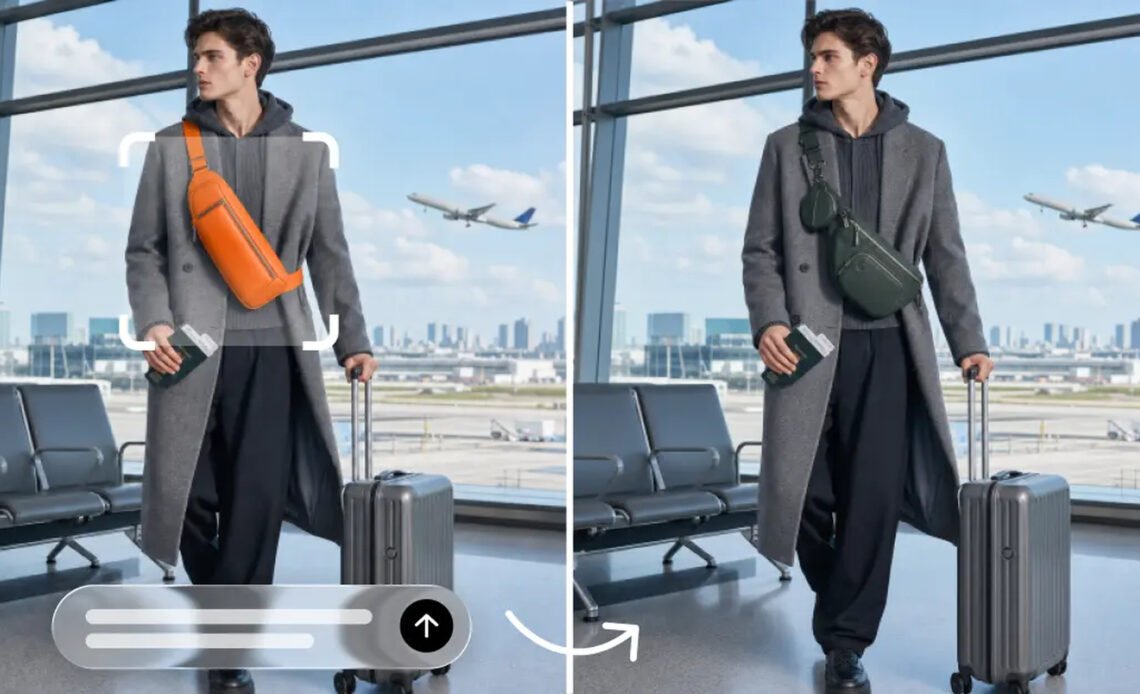
Creating animated visual photos from photographs no longer requires manually creating each animation frame. Dreamina AI is an AI that handles image creation, video generation, and editing in a single creative platform. Free credits can be used to test the video generation before allocating any further resources. But the number of credits, model access, and advanced features may change depending on the status of the current platform. Knowing how to use the workflow allows you to experiment with it in a meaningful way and then assess the outcome without wasting credits.
What Does It Mean to Try an Image-to-Video Generator With Free Credits?
Free credits afford access to only eligible AI video generation features, not limitless video creation. The consumption of credits varies between models or operations based on the terms of Dreamina AI at the time. AI video generator converts a provided image into a video clip based on written instructions. This includes the upload of an image, description of movement, production of footage, and review of the footage. The available generations are based on the balance of your account, the model you are choosing, and applicable credit rules. Before you begin, verify your balance and feature eligibility. Also, make sure you can create videos and that you have access to other features if you need them, such as downloading or commercial use.
What Can You Experiment With Using Dreamina AI?
Dreamina AI can be used for creative experimentation in various fields like portraits, products, landscapes, promotional graphics, and illustrated stories. For portrait shots, some head movement, gestures, and controlled camera approaches can be added. Carefully guided movement can accentuate unique forms, textures, and finishes in product visuals. Clouds, water, and foliage can be animated in a still image. Social media content creators can turn existing illustrations into short videos for various publishing formats. Event graphics and promotional posters can get a boost with just new motion graphics. When character illustrations are brought to life in short animated scenes, creative storytelling is also possible. These results vary according to the quality of the source image, prompt clarity, the capabilities of the model, and the complexity of the action.
Steps to Start Free: Try Image to Video AI Generator with Free Credits Today
Step 1: Claim your free credits, upload your image, and write a prompt
-
Sign up or log in to Dreamina first, and claim your free credits right away.
-
Go to the “Create” tab in the left menu, then select the “AI video” option there.
-
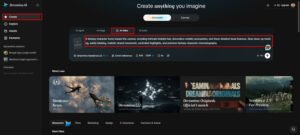
Upload your photo, then type a detailed text prompt for your video’s look and feel. Add details about video elements, theme, and concept to guide the AI toward your vision.
Step 2: Pick your model, tune the settings, and start generating
- Next, choose a model from the options present at the bottom of the dialogue box.
- Your available models include Dreamina Seedance 2.5, Dreamina Seedance 2.0, and Dreamina Seedance 2.0 Fast. Dreamina Seedance 2.0 Mini, Dreamina Seedance 1.0, and similar options also appear in the list.
- Click on “Omni reference” to guide the AI with multiple images for accurate video results.
- Then select your custom aspect ratio and resolution from the “Aspect ratio” and “Resolution” tabs.
- Finally, click on the “Generate” tab to begin creating your video and wait a moment.
Step 3: Refine your result and download the final clip
- If you dislike the results, choose “Edit prompt” or “Regenerate” to refine them further.
- You can also edit the generated video directly by using the “Edit video” option here.
- Moreover, you can use “Edit segment” to edit only one specific part of the video.
- You can extend your video using “Extend video” whenever the story needs more screen time. Improve your video quality using “Creative upscale” for sharper, cleaner, and more polished final visuals.
- Dreamina gives you complete creative freedom to edit your video exactly the way you like.
- Finally, click on the “Download” tab at the top right of the interface to save. The video file then saves safely on your local device for later use in projects.
Six Smart Ways to Make Free-Credit Experiments More Purposeful
- Before generating, have a clear objective: Determine what the image should communicate. Think of a single visual experience rather than multiple concepts.
- Pick the right picture: Pick a clear subject with distinguishable features and a simple composition. Don’t include references that make it hard to see what’s important.
- Write a focused prompt: Primary movement and camera behaviour. Only include secondary effects when they reinforce the desired effect.
- Compare creative directions: Vary one big instruction from one try to another. The differences between outputs can therefore more easily be evaluated.
- Inspect before regenerating: Find the particular weakness before revising instructions. Some changes are targeted to make each experiment more informative.
- Review credit conditions: See how much credit you have and what models are available. Check if there is a need for extra access to editing or enhancement features.
Understand the Difference Between Generation, Editing, and Enhancement
Generation produces a video with instructions and an image. Prompt editing makes it easier to understand the movement or appearance that is intended before another generation attempt. Regeneration results in an alternate, but not necessarily better, outcome. Segment Editing – edits only certain parts of the clip, if supported. Video extension is used to add in footage, and resolution enhancement is for larger output dimensions. Where possible, Dreamina AI’s Creative upscale can offer a higher resolution output, but it is not always possible to fix all motion defects automatically. Knowing these differences helps guide available credits to meaningful improvements.
What to Check Before Publishing a Free-Credit Creation
Look at the facial expressions, body positions, shape of objects, and consistency of backgrounds before posting. Look for abrupt jumps or actions that don’t get completed at the beginning or end. Make sure the aspect ratio is appropriate for the target platform. Check for readability of text, logos, and fine details. Check permissions for images and created content. Check out Dreamina AI’s existing terms of use, account limits, and licensing requirements.
Move From Experimentation to a Repeatable Creative Workflow
Save and remember successful prompts as well as which images provide convincing movement. Create a set of consistent criteria for motion, composition, and visual continuity. If new artwork is required, Dreamina AI’s Seedream image-generation capabilities can be used to generate further source images. Separate exploratory experiments from final production. Evaluate available free access options before thinking about other usage options.
Conclusion
Free credits are a great way to get started with image-to-video with no further resources. Experimenting becomes much more productive with clear source images, concise prompts, and careful reviews. Dreamina AI is an all-in-one generative and refining solution for an iterative creative process. Have one clear visual goal, test the outcome, and then use any leftover credits wisely.


